E3.series Tech Tips
- Blog
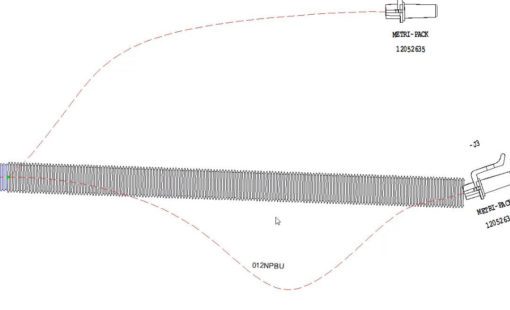
One of the new features in E3.series 2018 is the ability for users to create their own line and application fonts. The advantage to this is now users can create completed graphics such as spiral tape and corrugated tubing, which will follow the curvature of a segment on a formboard. These line fonts can be defined for any graphic entity in E3.series.
- Blog
The video below explains the different methods of renaming your wires in an E3.series, either while adding them or after they’ve been added to your project. It includes setup instructions for each method.

- Blog
E3.series provides a tool to export components and symbols from one database and import them into another database of the same version.
- Blog
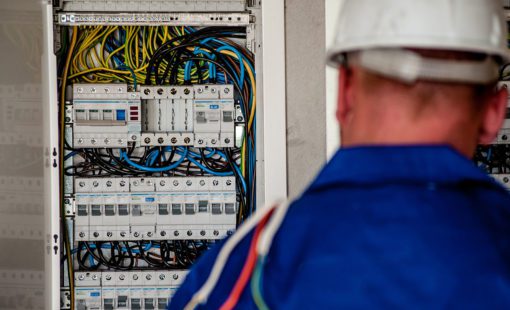
Cable ducts are special devices used in E3.panel that can be created with or without a definition in an E3.series database. These cable ducts can be created and placed on panel sheets; they’re used to route wires from one location to another.

- Blog
I am going to tell you about a feature in E3.series that allows you to rename all the components in your project – no matter how many pages you have – at one time. The video below will show you how easy it is to use this feature to save time.

- Blog
In this video, we’ll walk through the process of creating an attribute list of values for a specific attribute. This makes it extremely easy to select a value from a pulldown instead of wondering if you have the correct syntax for a given value. Using the list feature ensures a constant and correct value entry.
- Blog
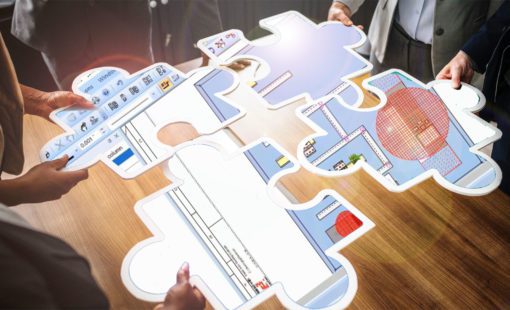
This tip explains how to use Panel Autoconnect to define wire lengths in E3.series. After a schematic is defined and units are placed in E3.panel, Panel Autoconnect finds the shortest path for the connections defined in the schematic. If units are moved in panel, the length information is updated across modules, allowing users to optimize the enclosure to minimize wire lengths.

- Blog
This video demonstrates the process of changing a device from inside a circuit in E3.series. Whether you choose to make the change from the schematic, the wiring diagram or the device tree, selecting and updating a component automatically updates all instances of it within your project.
- Blog
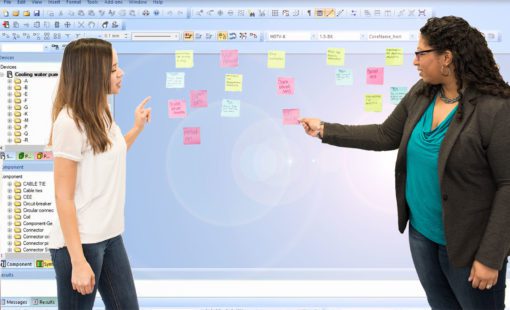
The video below explains how to smart dock and pin your most useful E3.series windows to a logical location or ease of use. Pinning your windows will save you screen space and allow you quick access to some of your most used windows.
- Blog
In Zuken’s E3.series, wire groups can be made up of a number of wires with identical characteristics but different part numbers. One group may contain all the available types of one specific manufacturer or one specific color. The video explains the creation of a wire group that has one specific color for all gauges.
- Blog
In E3.series, levels are used to make certain things – such as symbols, symbol graphics, symbol text, empty text, graphics, text, and connetions – within your project visible or invisible with the click of a button. The video below will show you how to control these levels within your E3.series project.
- Blog
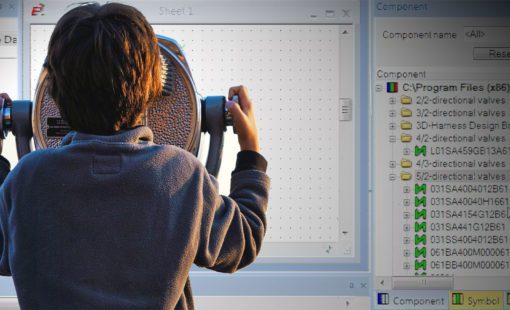
To make the process of locating components in your E3.series library easier and quicker, you can set up search fields in the library database window, where field entries quickly narrow to show available components for selection.
- Blog
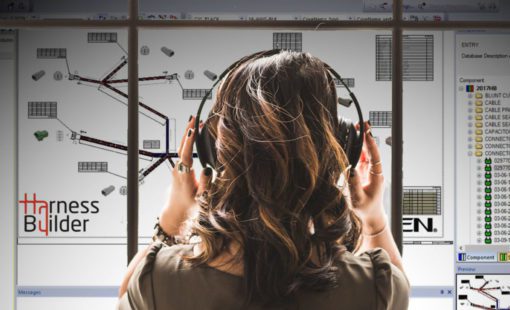
Using E3.series’ Component Table empowers users to make multiple changes to their library components faster and easier. It’s a very powerful and useful tool.
- Blog
In order to use components more effectively in your E3.series project, you can associate a model to that component. You can describe the logical characteristics of your component using Component Wizard. However, it’s best create a model of that component to describe its physical characteristics.
- Blog
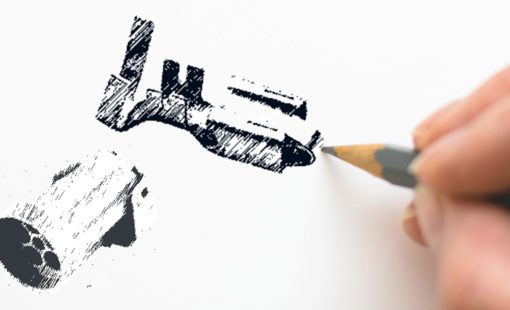
This video illustrates the process of creating a new terminal to be used with your connectors in Zuken’s E3.series. It covers the attribute information that can be applied to this model, and the model needed for the correct terminal for any given wire size.
- Blog
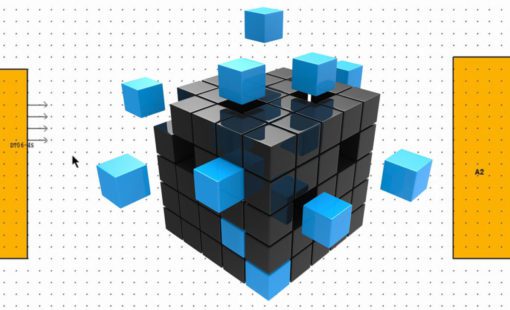
System design can be complicated and difficult to track across the entire design. Blocks inside Zuken E3.series give the users an easy way to manage multiple systems of varying complexity in a seamless environment.