
Tech Tip: Customizing E3.series Environment with Custom Scripts
Engineering teams maximize the value of software tools by adapting them to their specific needs. The open API in E3.series enables companies to create scripts that support their workflows and requirements. This Tech Tip explains how to configure E3.series to support custom scripts by mapping them to the user interface, making it easy for users to find and run them.
This article focuses on configuring access to an existing script; see the related resources below for more information on writing E3.series scripts.
Why Engineering Teams Use Custom Scripts
Every engineering organization develops its own workflows based on its products, customers, and processes. Even the most capable ECAD platform cannot anticipate every way a company structures its work. Custom scripts help align the software with those established workflows, making processes more consistent across users, projects, and locations.
This flexibility helps organizations work more efficiently as their teams and requirements evolve. By embedding established practices into the tools engineers use every day, companies can save time, reduce avoidable errors, and improve collaboration. Scripts also help teams apply shared knowledge more consistently, rather than relying on individual users to remember every step of a process.

Scripting in E3.series
E3.series supports electrical engineering from design through manufacturing. Its standard capabilities include design-rule checks, reports, and connected production data. However, many engineering teams choose E3.series not only for these built-in tools, but also for its open API, which lets them adapt and extend the software to their requirements.
The E3.series application programming interface gives developers access to nearly every object type within a project. This allows organizations to create scripts that interact directly with engineering data, project content, and E3.series commands. Support for multiple scripting languages also gives development teams flexibility in how they build and maintain these tools.
Organizations use E3.series scripts to support a wide range of engineering and business needs, including:
- Automating repetitive design tasks
- Checking project data against company-specific requirements
- Generating custom reports and documentation
- Exchanging engineering data with internal software systems
These scripts can save engineering time, improve consistency, reduce manual errors, and help information move more efficiently between teams. However, creating the script is only part of the process. To become part of an engineer’s normal workflow, the script must also be easy to find and run within E3.series.
How to configure E3.series for custom scripts
Once a script has been developed and tested, the next step is making it easy for users to access it within E3.series. Instead of requiring engineers to locate and run a script manually, administrators can add it directly to the user interface as a menu command or toolbar button.
Start by placing the script in a designated file path. Storing scripts in a common location ensures that E3.series can find and load them when the user interface is configured.
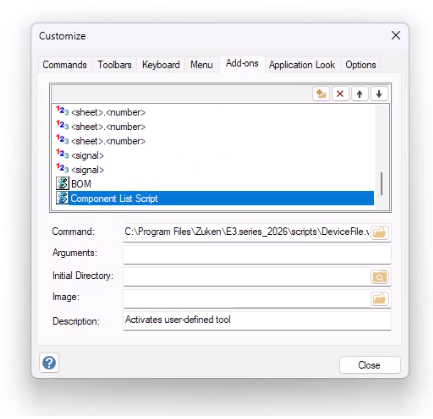
Next, open Tools > Customize in E3.series. In the Add-ons tab, map the command to the appropriate script file. This creates the connection between the script and the E3.series user interface.
After the script has been mapped, choose how users will access it. E3.series provides several options:
- Menu bar: Create a dedicated button along the menu bar
- Drop-down menu: Add the script as a command within an existing menu.
- Toolbar icon: Add a button that lets users launch the script with a customizable icon.
The best option depends on how frequently the script is used and how visible it needs to be. Frequently used scripts may work best as toolbar icons, while specialized or less common commands may fit more naturally within a drop-down menu.
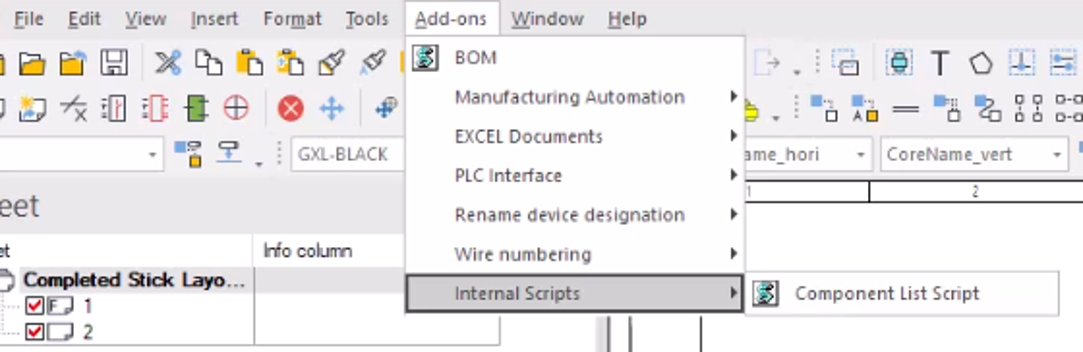
The final step is to save the workspace configuration using View > Workspace Configurations. This ensures the newly created button appears when you relaunch E3.series.
Watch the video below for a step-by-step demonstration of how to map a script and add it to the E3.series user interface.
Summary and additional resources
Custom scripts allow engineering teams to extend E3.series around their own processes and requirements. Adding those scripts to the user interface makes them easier to find, easier to use, and more likely to become part of an engineer’s regular workflow.
Use these resources to learn more about scripting in E3.series:
- Read our beginner’s guide to scripting in E3.series
- Register for COM Scripting training. This instructor-led online course is scheduled for October 19–22, 2026, with additional classes planned.
- Read how VBScript’s deprecation affects E3.series scripting.
- E3.series Help — The Help files included with the E3.series installation provide syntax and examples for COM methods.

-
Applications Engineer


- Blog

- Blog

- Blog

- Blog
Related Products and Resources
- Blog
- Blog

- Blog

- Blog