
Defining Mounting rails
Mounting rails are special devices, used in E3.panel that can be created dynamically by the user without any definition as well as with definition in the database. These mounting rails can be created and placed on panel sheets.
To define a mounting rail, start the Database Editor.
There are two possibilities to create a mounting rail:
-
The easiest way of creating a new mounting rail is to base it on an existing one and modify it. To do so, select the New command from the context menu of an already existing mounting rail, displayed by right-clicking on a mounting rail in the Model or Component tree view of the Database Window, or by right-clicking on the column header with an existing mounting rail highlighted. This method will create a new mounting rail based on the selected mounting rail.
-
To create a completely new mounting rail, with no mounting rail highlighted, select the New Model command from the context menu displayed by right-clicking on one of the headers of the Database Window. This method is used to create a new mounting rail from the scratch.
Creating a new mounting rail
Select the New Model command from the context menu displayed by right-clicking on one of the headers of the Database Window.
A new working area (drawing sheet) named Model NewModel# is created. Its size depends on the size defined in the Tools -> Settings-> Database Editor -> Model dialog box.
The grid display can be activated using View -> Rulers and/or Grid and modified using Tools -> Settings -> Database Editor -> Model.
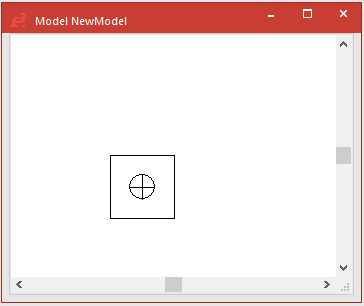
To start creation of the new mounting rail now, proceed as follows:
Model name, type and description
-
Establish the model's name, type and its description: in the working area's context menu, activate the Model Propertiesdialog box to define the model's type and assign the model a name (52 characters) as well as additional attributes.
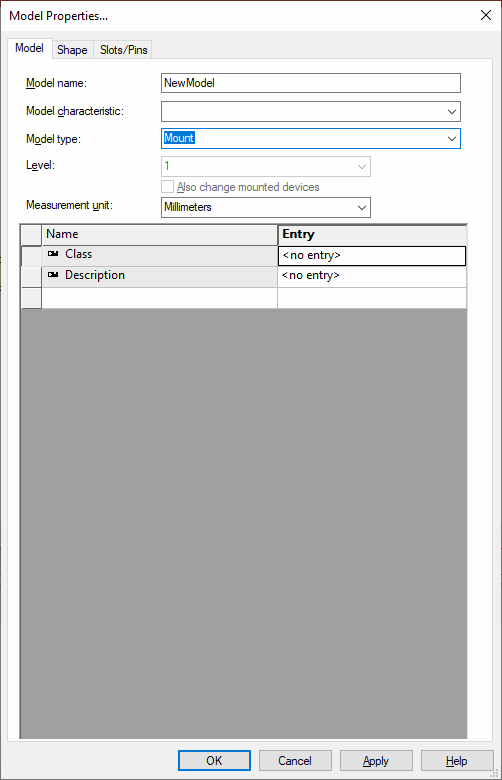
As the type defined is Mounting rail, applying the modifications automatically transfers the mounting rail shape to the drawing sheet.
Example

Origin
-
The physical zeropoint of the new mounting rail is placed in the middle of the mounting rail's left side. It is fix and cannot be edited.
Graphics
-
The default graphic for models of type Mounting rail is predefined. In case you want to add graphics to define how the mounting railshould look when placed inside the panel,
-
use the graphic draw commands on the Graphic Toolbar (line width, color, level and style).

Example

-
-
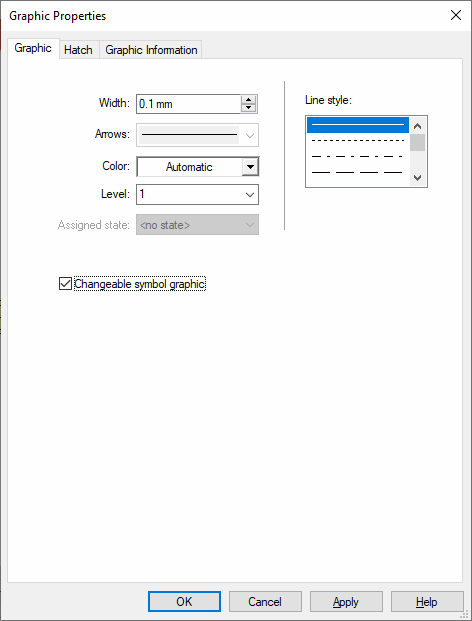
Or by using the Graphic Properties... from the context menu of the selected element;
-
Check the Changeable symbol graphic option to ensure the graphic element selected to be dynamically resizable, if desired.
(In the example, the circle is fix, the line is changeable.)
Model shape
-
The initial mounting rail's space requirement is depicted by a square located around the original origin location.
As soon as the mounting rail is placed in the working area, the space requirement is automatically adjusted to the default shape. Further definition or adjustment is not necessary.
-
The mounting rail's shape can be defined in the Model Properties - Shape dialog.
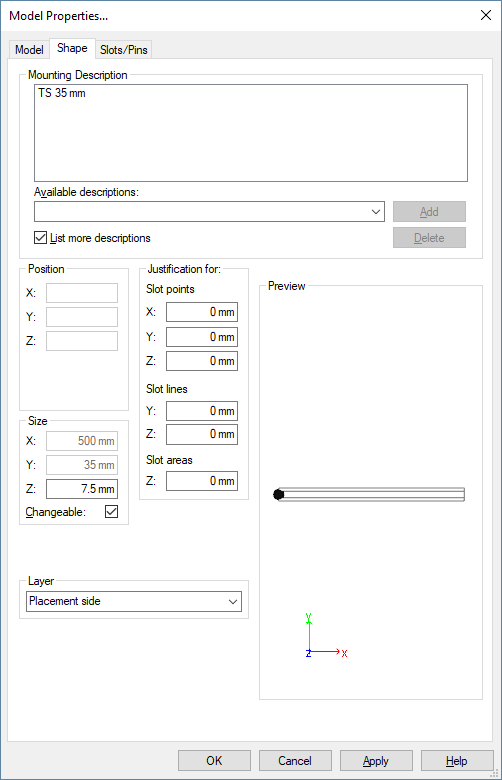
Define the Mounting Description
and check Changeable in case you want the mounting rail's size to be editable.
Note that Changeable corresponds to the Changeable symbol graphic checkbox in the Graphic Properties.
-
The Model Properties - Slots/Pins tab offers the possibility to define the mounting rail's slot line.
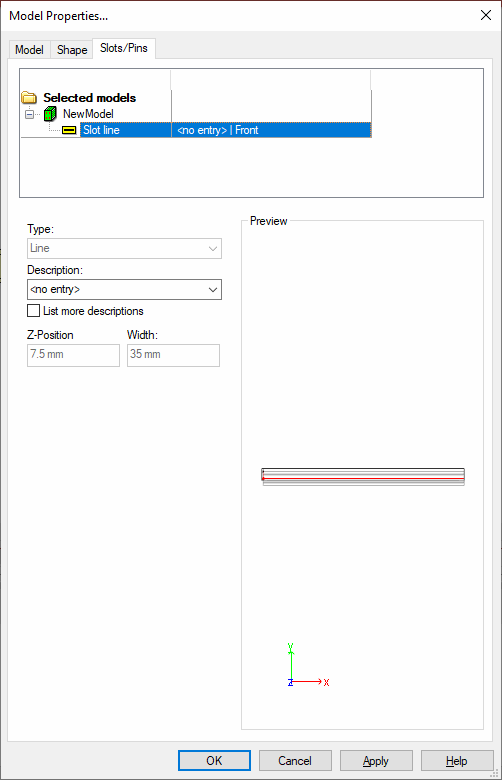
The description is an identifier for the mounting rail type.
Only components with the same 'mounting rail type' can be placed on that mounting rail type.
-
Finally, the mount's model can be saved to the database by means of the Save to Database command from the object menu.
All coordinates of the model's objects are saved in the database as relative to the model zeropoint.
Component definition
The next step is to create the component:
-
Select the New Component command from the context menu displayed when right-clicking on the column header of the Database Window's Component view.
The Component Wizard will be started.
-
Select the Standard device as Type in the Identification dialog. Define the mounting rail's Name, Device letter code, etc..
-
In the Properties dialog, define the attributes desired.
-
The Completely new structure option is already checked in the Structure dialog.
-
Select the Edit component graphically option in the Complete dialog.
-
A new working area (drawing sheet) named Component <Name># is created. Its size depends on the size defined in the Tools -> Settings-> Database Editor -> Component dialog box.
The grid display can be activated using View -> Rulers and/or Grid and modified using Tools -> Settings -> Database Editor -> Component.
-
Define the sheet format, if necessary, in the Working Area Properties.
-
Then, select the previously created model and place it on the drawing sheet.
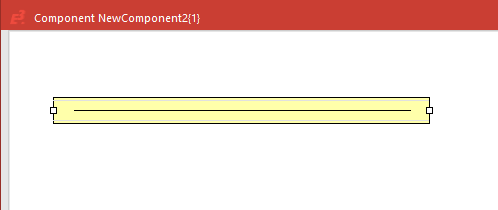
-
Finally save the newly created mounting rail to the database using the Save to database command selected from the context menu displayed when right-clicking anywhere on the sheet.