
Database Editor - Model
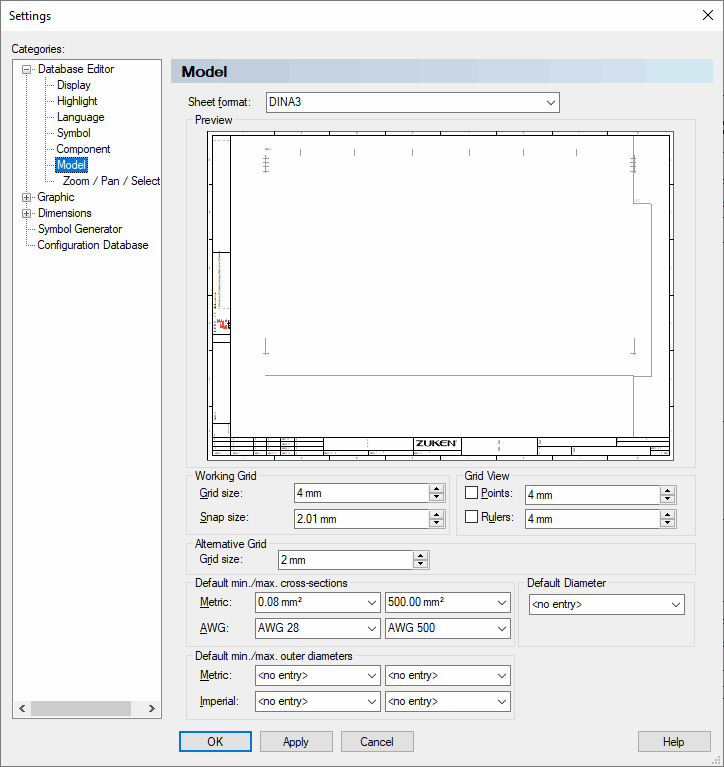
Grid size and Snap size can be defined in 1/10mm increments (or, in case Inches is defined as measurement units, in 1/1000" increments).
When the values are increased or decreased using the up and down arrows of the entry field, the grid size is modified in 1 mm increments (or 1/100") and the snap size in 1/10mm increments (or 1/1000").
Grid size and Snap size can be defined independently from one another, i.e. changing the grid size might cause an adjustment of the snap size.
|
Model |
|
|---|---|
|
Sheet Format |
Defines the sheet format to be used, when creating models, and can be selected from a drop-down list.
All available sheets formats in the database are listed. |
|
Preview |
The selected sheet format will be displayed in the preview window of the dialog box. |
Working Grid |
|
|
Grid size |
Defines the distance between the grid points. The operation of several commands is based on this setting (e.g. placing, connecting). |
|
Snap size |
This value defines the snap size, which is used to identify the respective objects when digitizing.
As the snap size should always be defined dependent on the grid size, the value is automatically adjusted when changing the grid size (to grid size/2 + 0.1 mm).
The user will be informed of this automatic adjustment by the I - Value for snap size adjusted to new working grid!
message displayed in the Messages window.
However, the user has the possibility to independently change the snap size value without affecting the grid size value. |
Grid View |
|
|
Points |
Using this checkbox the point grid's display is activated/deactivated in all currently opened working windows.
The entry field defines the grid point's distance.
Besides activating/deactivating the corresponding checkbox in this tab, the point grid's display can also be activated/deactivated using
|
|
Rulers |
When the corresponding checkbox is checked, a ruler is displayed at the margin of the Drawing sheet window. |
Alternative Grid |
|
|
Grid size |
Frequently, graphic objects and text have to be placed in a grid, which is more precise than the working grid.
When placing using Drag&Drop, Place, Move or Insert, the Alternative Grid is activated by pressing the Ctrl key. This option defines the distance between the grid points of the alternative grid.
It is also possible to dynamically switch to this second grid while placing. The alternative grid remains active as long as the Ctrl key remains pressed.
NoteIf the Alternative Grid is defined as 0, the user works completely 'off grid' while pressing the Ctrl key (this is the default setting for the Alternative Grid). Therefore, an object can be placed at any position.
It is not required to define a second snap size because the snap size is defined automatically when working with the alternative grid (1/2 grid + 0,01).
The Alternative Grid can be defined in Project as well as in Database Editor mode, independently from one another. |
Default min./max. cross-sections |
|
|
Metric/AWG |
Defines a minimum and maximum cross-section in metric units / AWG (American Wire Gauge).
Remarks on the values specified (metric and AWG)Decisive is the time a node is created using the toolbar buttons Single node or Multiple nodes when editing a model.
When Millimeter is defined as Unit in Settings -> Database Editor, valid values for the created node are the metric values from the new setting. When Inch is defined, it's the AWG values. |
|
Default Diameter |
Defines a default diameter of pins for hoses/tubes. |
Default min./max. outer diameters |
|
|
Metric |
Defines a maximum and minimum default outer diameter for the wire seal in metric ( |
|
Imperial |
Defines a maximum and minimum default outer diameter for the wire seal in imperial (inch) units. |
 in the