
Customize - Add-Ons
Add-ons can be added, arranged and changed in the Customize dialog.
How to open the "Customize - Add-ons" dialog
-
Select the Tools -> Customize... command from the main menu bar, and
-
switch to the Add-ons tab.
The following dialog box appears:
Image: Dialog "Customize - Add-ons"
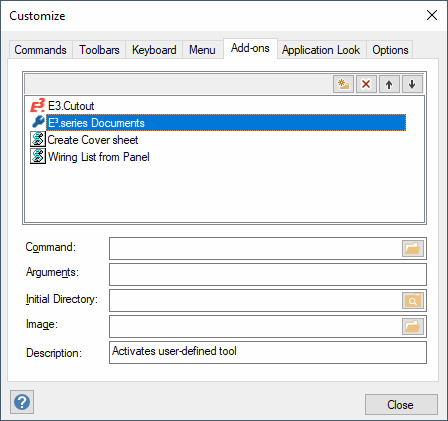
Description of the dialog "Customize - Add-Ons"
In this dialog new commands (i.e. add-ons) can be defined. To be able to place the commands in the menu or the toolbar, first switch to the Commands tab and activate the Add-ons category. The Add-ons category in the Keyboard tab also contains a list of add-ons, that are sorted alphabetically there. When modifying the command's name in this list, it's automatically modified in the menus and toolbars.
To add, delete or move an add-on, select the corresponding button in the field's right-hand margin:

Up to 200 different add-ons are allowed.
Note
Add-ons do not necessarily have to be contained in the toolbar or in a menu but can also be executed using a shortcut.
To change a command, select it in the list and make the desired changes in the fields underneath the list.
The following fields are available for adding, viewing or changing the command definitions.
Command
Click on the button in the right-hand margin to open the Open dialog. This dialog gives the full path and names of every Windows application that shall be executed.
For executing a Visual Basic Script (the file type must be *.vbs or *.vbx), the complete path and the name of the script's source file must be specified.
Arguments
Defines all arguments that shall be used while executing your program.
Initial Directory
By default the application works in the current directory of E3.series or if a project is opened in the project directory. If a user wants to change the initial directory, a valid path must be entered here.
Image
Click on this button to open the Open dialog. Every add-on here can be assigned a user-defined bit map file (*.bmp), which is displayed in the menu.
Description
The defined description is displayed in the status bar and as icon tooltip.
Place Add-ons
All add-ons are listed in the Addons category of the Commands tab. This order corresponds to the list under Add-ons.
These commands can be repeatedly placed in the main menu toolbar, in a new context menu and in the toolbars.
To do so, select the desired 'Command ' and drag it to the desired position within the menu or the toolbar.
These add-ons are also listed alphabetically in the Add-ons category of the Keyboard tab. Every add-on can be assigned a shortcut so long as the add-on is not contained in a toolbar or a menu.
The arrangement of add-ons can be returned to their original state using the Reset button in the Menu tab.
When resetting the menu, it's reset according to a completely new installation. Tools are positioned in the menu as defined in the script directory and thereby all previously placed tools are removed from the menu. However, they remain in the tools list in the Add-ons tab.
Notes
When a new file is inserted to the script directory or an existing file is renamed, the script directory must be imported again:
-
Option
By adding all single tools again under Tools -> Customize tab Tools
-
Option
By clicking the Reset button under Tools ->
Notes to Take Over Add-ons/Shortcuts/Hidden System Commands from Previous Version
If no existing working space configuration is found when starting E3.series, information on the add-ons and their arrangement, as well as the shortcuts and hidden system menus are taken over, if an old working area configuration is available in the installation directory.
The initial state is generated and the add-ons are loaded from the script directory, if no old working area configuration is available.