
Customize - Keyboard
Using the keyboard instead of the mouse enables to execute commands more quickly. Shortcuts can be defined in E3.series using accelerators thereby reducing the number of keystrokes.
How to open the "Customize - Keyboard" dialog
-
Select the Tools -> Customize... command from the main menu bar, and
-
switch to the Keyboard tab.
The following dialog box appears:
Image: Dialog "Customize - Keyboard"
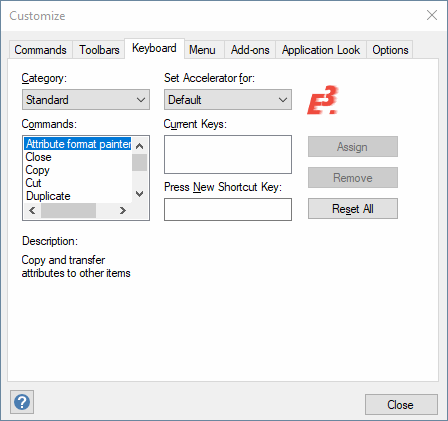
Description of the dialog "Customize - Keyboard"
Category
Select the desired category in which the desired command exists.
The following categories are contained in the default application:
-
Standard
-
Display
-
Place
-
Connect
-
Wire Setting
-
Hose/Tube Setting
-
MIL Settings
-
Formboard
-
Funct. Design / Topology
-
Electrical Checks
-
Graphic
-
Text
-
Panel
-
Addons
-
Default menu
-
Removed from menu
-
Misc accelerator
-
All commands
Set Accelerator for
Accelerators cannot be defined or changed in E3.series.
Commands
Select the desired command to assign a new shortcut to.
Description
Shows a description of the selected command.
Current Keys
Displays the current shortcut for the selected command.
Press New Short Key
Press the desire keys to enter a new shortcut. For example, CTRL-X is displayed when selecting the Cut command. If this shortcut is to be changed, click on this field and enter the new shortcut, e.g. CTRL-1.
Afterwards, click on Assign and the new shortcut is added to the field as well.
If a new shortcut is entered that has already been assigned (e.g. CTRL-X), the system displays a message stating so.
Note
The command doesn't necessarily have to be contained in the toolbar or in a menu.
Assign
After pressing the desired keys for the new shortcut, it can be assigned using this button.
Remove
Removes the current shortcut.
Reset All
All shortcuts are reset to their default values.
Note
In doing so, newly crated shortcuts are deleted.
Predefined Shortcut Keys in E3.series
These shortcuts are contained in the E3.series default application. New or additional shortcuts can be created, already existing ones can be modified by the user.
File Menu
Command |
Shortcut |
|---|---|
|
New |
CTRL+N |
|
Open |
CTRL+O |
|
Save |
CTRL+S |
|
Save as |
F12 |
|
|
CTRL+P |
|
Exit |
Alt+F4 |
Edit Menu
Command |
Shortcut |
|---|---|
|
Undo |
CTRL+Z / ALT+BACK |
|
Redo |
CTRL+Y |
|
Cut |
CTRL+X / SHIFT+DEL |
|
Copy |
CTRL+C / Ctrl+INS |
|
Duplicate |
CTRL+D |
|
Paste |
CTRL+V / SHIFT+INS |
|
Paste extended |
CTRL+SHIFT+V |
|
Delete |
DEL |
|
Move (Rotate) |
CTRL-M |
|
Move along horizontal axis |
H (keep pressed and move mouse) |
|
Move along vertical axis |
V (keep pressed and move mouse) |
|
Move (sub)objects with locked position |
F |
|
Change Signal on selected pins |
CTRL+W |
|
Select all |
CTRL+A |
|
Search |
F3 |
|
Reset Highlight |
SHIFT+F3 |
View Menu
Command |
Shortcut |
|---|---|
|
Zoom |
Z |
|
Adjust Zoom |
J |
|
Fit to Window |
O |
|
Levels |
L |
|
Project Window |
ALT+0 (zero) |
|
Database Window |
ALT+2 |
|
Output Window |
ALT+1 |
|
Refresh |
F5 |
Insert Menu
Command |
Shortcut |
|---|---|
|
Last symbol |
D |
|
Dimension |
M |
|
Text |
T |
|
Connection |
C |
|
Curve connection |
B |
Tools Menu
Command |
Shortcut |
|---|---|
|
Settings |
S |
|
|
|
Misc Menu
Command |
Shortcut |
|---|---|
|
Display all |
F6 |
|
Reset display all |
SHIFT+F6 |
|
Place at original position |
SHIFT + O |
|
Coordinate Input |
P |
|
Reconnect |
Q |
|
Rotate |
R |
|
Pivot backwards |
Shift + ↑ |
|
Pivot left |
Shift + ← |
|
Pivot right |
Shift + → |
|
Pivot forward |
Shift + ↓ |
|
Pivot stepwise backwards |
Ctrl + ↑ |
|
Pivot stepwise left |
Ctrl + ← |
|
Rotate stepwise left |
Ctrl + R |
|
Pivot stepwise right |
Ctrl + → |
|
Rotate stepwise right |
Ctrl + G |
|
Pivot stepwise forward |
Ctrl + ↓ |
|
Activate / deactivate snap move mode |
W |
|
Mirror X |
X |
|
Mirror Y |
Y |
|
Jump |
CTRL+J |
|
Jump to tree |
CTRL+left mouse click on desired device |
|
Help |
F1 / SHIFT+? |
|
Open/Close full screen mode |
F11 |
|
Rename |
F2 |
Shortcut Keys in Compatibility Mode CR-5000
In order to have E3.series act similar to CR-5000 regarding the interface, this can be defined through the CR-5000 option under Tools -> Settings -> General -> Compatibility mode. When the option is checked, commands can be called up using other shortcuts and mouse buttons.
After activating or deactivating the CR-5000 option, the standard shortcuts and the corresponding *.xml file can be reloaded.
Separate XML files exist for the compatibility mode in the form of wsmgr-mode-[cable,schema,...]-name.xml.
The following functions are available.
Funktionen
|
Redo / Undo |
|
|
E3.series: CR-5000: |
CTRL+Z / CTRL+Y U / R / CTRL+Z / CTRL+Y |
|
Refresh Display |
|
|
E3.series: CR-5000: |
F5 1, S |
|
Fit to Window |
|
|
E3.series: CR-5000: |
O 0, W |
|
Arrow keys |
|
|
E3.series: CR-5000: |
Move cursor Panning |
|
Shift + arrow keys |
|
|
E3.series: CR-5000: |
Pivot in panel Move cursor |
|
Zoom |
|
|
E3.series: CR-5000: |
Z 7, Z |
|
Rotate |
|
|
E3.series: CR-5000: |
R "[" (doesn't work with German keyboard) |
|
Y Mirror |
|
|
E3.series: CR-5000: |
Y M |
|
Duplicate (Copy&Paste with one command) |
|
|
E3.series: CR-5000: |
CTRL+D CTRL+D, D |
|
Move horizontally or vertically |
|
|
E3.series: CR-5000: |
H, V while moving H, V while moving |
|
Move locked objects (locked through Lock Position) |
|
|
E3.series:
CR-5000: |
F while moving F while moving |
|
Connect |
|
|
E3.series: CR-5000: |
C C, CTRL+W |
|
Move |
|
|
E3.series: CR-5000: |
CTRL+M CTRL+M |
|
Save / Save as |
|
|
E3.series: CR-5000: |
CTRL+S / F12 "no shortcut" / CTRL+S |
|
Middle mouse button + Move |
|
|
E3.series: CR-5000: |
Zoom Panning |
|
Double-click |
|
|
E3.series: CR-5000: |
Multiselect Properties dialog |
|
Scroll using middle mouse button + Shift |
|
|
E3.series: CR-5000: |
Panning (horizontal) Panning (horizontal) |
Execution by a special key
In E3.series commands can be selected and, if applicable, executed by pressing a special key in an opened main menu or context menu dialog.
There are two possibilities:
-
Execution through a hotkey, that means underlined character in the command name
Menu Command - hotkey o -
Execution through a starting letter key, that means the key representing the first letter in the command name
Menu Command - starting letter key m
The main menu or context menu command is selected and executed after pressing the key representing the first letter in the command name. If two or more commands begin with the same letter in a dialog, the uppermost command is selected. Pressing the same starting letter key again jumps to the next command beginning with this letter and so on. To execute the currently selected command, press the Return Key.
A hotkey always has precedence over the first letter in a command. A hotkey command will immediately. be executed.
Context Menu Command - hotkey o has precedence over starting letter key c
Example 1
-
Menu Command 1
-
Menu Command 2
-
Menu Command 3
By pressing the M key, Menu Command 1 is selected.
By pressing the M key once again, Menu Command 3 is selected (because Menu Command 2 contains a hotkey).
Example 2
-
Menu Command 1
-
Menu Command 2
-
Menu Command 3
By pressing the M key, Menu Command 2 is selected and executed immediately (because the letter M is used as a hotkey).
Example 3
-
Menu Command 1
By pressing the M key, Menu Command 1 is selected and executed immediately (because the first letter M appears only once in the menu).