
Signal Tree
General Information
A signal tree is a special kind of tree view in which all signals used in project are displayed.
The Signal tree offers:
-
a detailed overview of existing signals within a project
-
the possibility to predefine signals and easily assign these to pins and connections
-
search functionality for signals with highlighted results
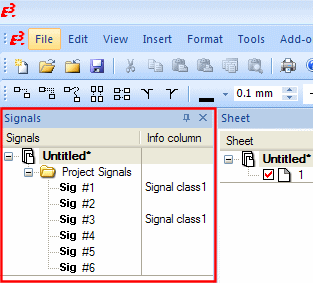
The Signal tree is not displayed by default. To show this tree, a project must be opened.
Then select the View -> Signal Tree command from the Main menu bar:
Remarks
-
The Signal tree can be displayed only once in a project in Project mode.
-
The Signal tree window can be adjusted to the user interface (moved, docked, resized etc.) as desired.
(see also: Docking and Arranging Windows, Tables and Toolbars)
Signal Tree Structure
The Signal tree contains the fix folder Project Signalsand one/several optional XML structure folder(s).
-
The folder Project Signals contains all signals contained in the current project.
-
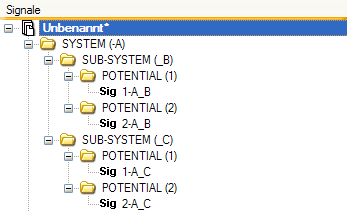
The 'XML Structure Signal' folder contains a predefined signal structure that can be loaded using an XML signal structure file.
To load an existing signal structure into the current project
-
right-click on the project name in the Signal tree,
-
select the Load signal structure... command from the displayed context menu,
-
and select the desired XML file.
XML Signal Structure File
The following example shows the XML elements for the XML signal structure file.
Programming text
<?xml version="1.0" encoding="UTF-8"?>
<signalnames>
<struct name="SYSTEM"value="-A"id="0001">
<struct name="SUB-SYSTEM"value="_B"id="0002">
<struct name="POTENTIAL"value="1"id="0003">
<signal>
<attribute name="COLOR">black</attribute>
<attribute name="COLOR"value="gray"/>
</signal>
</struct>
<struct name="POTENTIAL"value="2"id="0004">
<signal>
<attribute name="COLOR">black</attribute>
<attribute name="COLOR"value="gray"/>
</signal>
</struct>
</struct>
<struct name="SUB-SYSTEM"value="_C"id="0005">
<struct name="POTENTIAL"value="1"id="0006">
<signal>
<attribute name="COLOR">black</attribute>
<attribute name="COLOR"value="gray"/>
</signal>
</struct>
<struct name="POTENTIAL"value="2"id="0007">
<signal>
<attribute name="COLOR">black</attribute>
<attribute name="COLOR"value="gray"/>
</signal>
</struct>
</struct>
</struct>
</signalnames>
Meaning of the XML elements
-
<?xml version="1.0" encoding="UTF-8"?>
XML declaration
-
<signalnames>
Root element
-
<struct>
Defines a part of the structure:
-
XML attribute 'name' name of the structural element
-
XML attribute 'value' defines a part of the signal
-
XML attribute 'id' unique identifier within entire structure
-
-
<signal>
Defines the signal , which is composed of the superior structure nodes.
The signal is composed of the XML 'value' attributes as follows:
-
First, the 'struct' element of the lowermost level is used (last 'struct' element before the 'signal' element).
-
Afterwards, all additional 'struct' elements are listed from the uppermost to the lowermost level.
Example:
Signal name '1-A_B' consists of the elements <POTENTIAL>;<SYSTEM>;<SUB-SYSTEM>
-
-
<attribute>
Defines an E3.series attribute to be assigned to the signal:
-
XML attribute 'name'
Name of the E3.series attribute
-
XML attribute 'value'
Value of the E3.series optional attribute. If a value exists between the 'attribute' element, this is used.
-
Functionality in the Signal Tree
The following context menu commands appear when right-clicking on one of the signals listed in the signal tree:
Highlight
Executing the context menu command Highlight on a signal entry in the Signal tree (e.g. on signal 3), highlights all objects in the project that have the selected signal (e.g. signal 3) assigned.
Additionally, the results are displayed in the Results window.
Note
This command is also possible by double-clicking on the corresponding signal in the signal tree.
Highlight Conductor Logic Lines of Signal
By executing the context menu command Highlight Conductor Logic Lines of Signal on a signal entry out of the signal tree, all
Place
Executing the context menu command Place allows a signal from the signal tree to be assigned to an individual object in the project.
To place a signal on an object
-
right-click on the signal in the signal tree that you wish to assign,
-
select the command Place from the displayed context menu,
-
click on the desired object in the workspace, which shall receive the signal from the signal tree.
Remaks
-
This context menu command also functions using Drag&Drop.
-
The option Net transfer signal (under Connection Properties -> Net) must be active in order to assign a signal to a connection.
Using Drag&Drop a signal from the signal tree can be assigned to a valid row in the Connection Table or in the Pin Table. In the column Signal name the corresponding signal is adopted.
Prerequisites
-
In the Connection Table signals can only be placed on rows (lines), in which the option Net transfer signal (under Connection Properties -> Net) is active on the connection.
-
In the Pin Table signals can only be placed on rows (lines), in which pins are defined.
Assign Signal to Selection
This context menu command only appears if an object has been selected in the workspace area that can be assigned a signal.
By executing the context menu command Assign signal to selection a signal from the signal tree can be assigned to several objects in the project.
To assign a signal to one or more object(s):
-
select the desired object (also multi-select) in the workspace area that the signal from the signal tree shall be assigned to,
-
right-click on the signal that you wish to assign in the signal tree,
-
select the command Assign signal to selection from the displayed context menu.
Remarks
-
For objects with more than one pin this context menu command is inactive.
-
The option Net transfer signal (under Connection Properties -> Net) must be active in order to assign a signal to a connection.
Signal Format
In E3.series a signal placeholder for the signal name can be displayed on the signal. The signal name will automatically be generated either for one-time use or for relevant changes according to the format description after having placed a signal placeholder. Placing the signal placeholder occurs with the functionality Signal Format.
Signal Properties
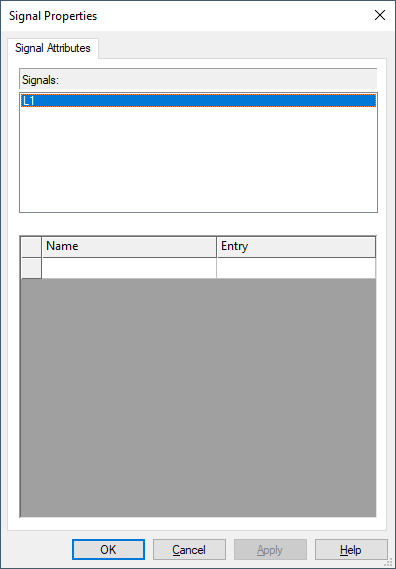
Executing the context menu command Signal Properties... opens the Signal Properties dialog for the selected signal/signals (multi-select).
The dialog contains the same information as the Signal Attributes tab in the Connection Properties.
Renaming Signal Names
To rename a signal, either select the signal in the Signal Properties dialog or in the Signal tree and press F2 to edit the name.
The signal is renamed and according to its name sorted in the Signal tree. The signal remains highlighted after renaming and the visible area of the Signal tree is not changed.
Note
The signal **NC**, signals with format definition and signals from the XML structure file cannot be renamed.