Signal Format
In E3.series a signal placeholder for the signal name can be displayed on the signal. The signal name will automatically be generated either for one-time use or for relevant changes according to the format description after having placed a signal placeholder.
Placing the signal placeholder occurs with the functionality Signal Format.
How to place a signal placeholder in a signal text
-
right-click on the desired connection line and select the command Signal Format...in the displayed context menu
or right-click with the mouse button on the desired signal within the signal tree and select the command Signal Format... in the displayed context menu
or right-click on the desired symbol in the working area and select the command Signal Format... in the displayed context menu.
-
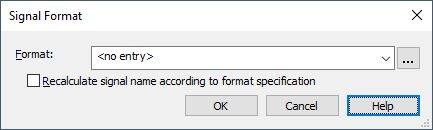
the Signal Format
|
Signal Format |
|
|---|---|
|
Format |
The signal placeholder can be entered on a signal here.
The following signal placeholders are available:
Already created signal format combinations can be selected in the drop-down list.
Note
Clicking the button |
|
Recalculate signal name according to format specification |
If the check box is active, all relevant changes to the signal formats will be recalculated automatically. In doing so, it's possible to control whether modifications to each signal can be individually updated or not.
Relevant changes are:
A default value can be defined using the check box Recalculate signal names according to format specification in the Settings (under Connection -> Signals -> Signal Format). |
 opens the
Note
It's also possible to set signal placeholders in texts of the type TTYP_SIGNAL (#7) and TTYP_CONNECTION_SIGNAL (#1007) as follows:
-
by selecting the signal texts and clicking F2 afterwards, or
-
right-clicking on the signal text and selecting the command Text Properties... in the displayed context menu.
Select the tab Text in the Text Properties and insert the desired signal placeholder under Text.
Example for the signal placeholder <.SHEET>:
-
This example shows the sheet name 'sheet_name':

-
The signal placeholder <.SHEET> is defined on the signal:

-
The signal now receives the current sheet name 'sheet_name' as signal name:

Example for the signal placeholder <.GRID>:
-
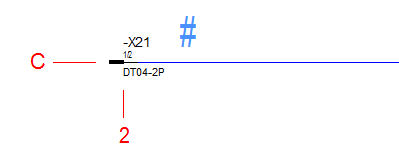
'C2' is used as reference value for the sheet coordinate in following example:
-
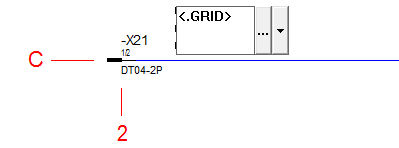
The signal placeholder <.GRID> will be defined on signal:
-
Now the signal receives the sheet coordinate 'C2' as signal name:
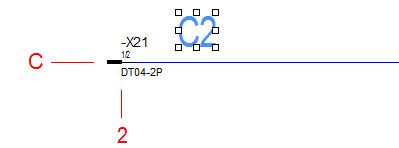
Example for the signal placeholder <ATTRIBUTE>:
-
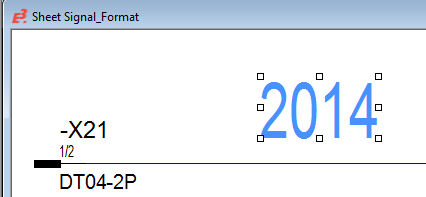
The signal attribute New Feature is used as attribute with the Entry 2014:
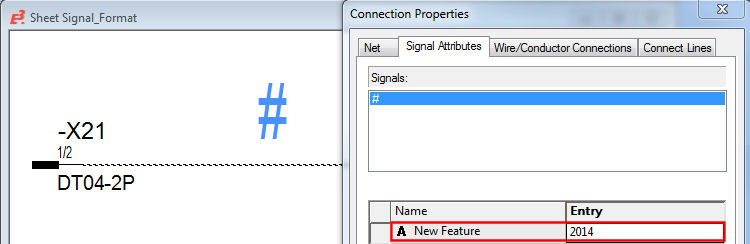
-
The signal placeholder <New Feature> (<Name of attribute>) is defined on the signal:
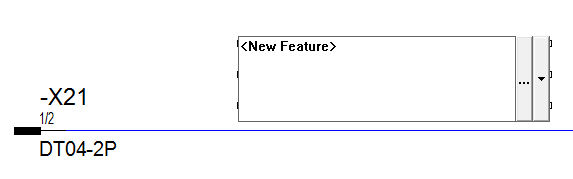
-
The signal now receives the Entry 2014 from attribute New Feature as the signal name: