
Generating Tube and Hose for Fluid in Database
It is possible to generate a tube or hose using the Database Editor's Component Wizard. The Component Wizard is automatically started when starting generation of a new component.
To do so, proceed as follows:
-
Right-click on the header of the 'Component' column in the Database Window's Component view and select the New Component command from the displayed context menu. The Database Editor is automatically started, if not yet happened.
-
Or right-click on a component in the Database Window's Component view and select the New Component command from the displayed context menu.
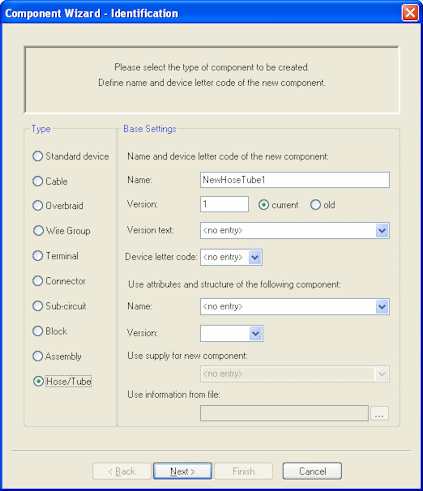
The Component Wizard's Identification dialog appears:
|
Component Wizard - Identification |
|
|---|---|
|
Type |
Select the type of component to be generated: Hose/Tube. |
Base Settings |
|
Name and device letter code of the new component |
|
|
Name |
Name of the hose or tube. When this name already exists in the database, it is rejected, except another version is defined, or the 'old' radio button is checked.
By default, NewHoseTube# is entered.
|
|
Version |
The component's version number is defined. When no version is defined, it is not possible to switch to the next dialog, and a message may be displayed asking the user to specify a version for the component.
The current and old options define, which version is assigned the new component. The current version is displayed in the third column of the Database Window's Component view.
The version status of the 'current' component in the database is instantly changed to 'old' when modifications have been made.
By default, the version of a new component is 1. |
|
Version text |
This text is a descriptive text for the version. The version description can always be changed. |
|
Device letter code |
The Device letter code is the prefix letter(s) used to identify the component when it is placed in a drawing.
It can be selected from the drop-down list or entered manually. |
Use attributes and structure of the following component:/Use structure of the following component:This option only appears, when Edit is selected on a component without structure |
|
|
Name |
If the new component is based on an already existing one (activating the New component command on an already existing component in the Database Window's Component tab), the 'base' component's name is displayed in the Name field. This name can be changed.
The component can be selected from the drop-down list which contains all components available in the database. New attributes for the new component can be defined in the Component Properties dialog box and existing attributes can be edited using the Attribute Names command. |
|
Version |
Displays the 'base' component's version. |
Then click Next to switch to the Component Wizard - Properties dialog.
The properties of the new component can be specified in this dialog.
The following attribute owners are available for defining a attribute: attribute owners.

After defining the properties, click Next. The Component Wizard - Hose/Tube dialog appears:
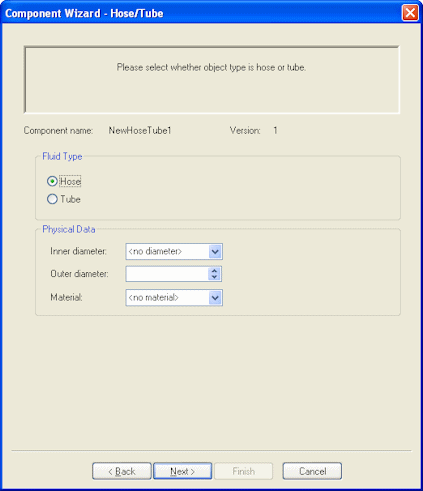
Select the fluid type desired: Hose or Tube and define the physical data.
Then select Next to transfer the new component to the database.
The following icons are then displayed in the database tree:
-
Hoses:

-
Tubes:
