
Defining Cavity Part Groups in Database Editor
E3.series provides the component type Cavity part group, which can be created in the Database Editor.
Individual connector pin terminals, cavity plugs and wire seals can be added to a cavity part group and defined later as the valid cavity part on the component.
Modifications to the cavity part group (connector pin terminal, cavity plug, wire seal for adding/deleting cavity part group) are automatically adopted by all other linked components.
Cavity part groups are represented by the icon  in the Component tree of the Database Editor.
To define a cavity part group, proceed as follows:
-
Right-click on the header of the 'Component' column in the Database Window's Component view and select the New Component command from the displayed context menu. The Database Editor is automatically started, if not yet happened.
-
Or right-click on a component in the Database Window's Component view and select the New Component command from the displayed context menu.
-
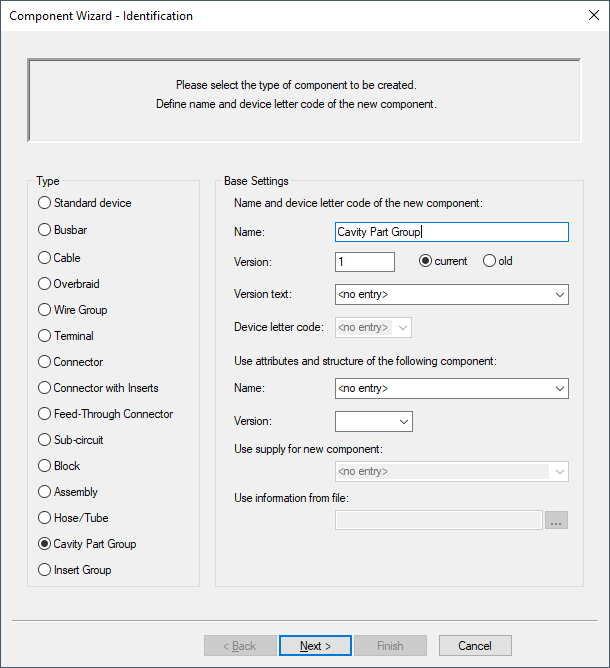
The Component Wizard is started. Select Cavity Part Group as Type in the Identification page and define other properties such as name or attributes.
If the new component should be based on an already existing component, i.e. use the same structure and attributes, check the corresponding option and select the required 'base' component from the drop-down list.
-
Select Edit component graphically in the Component Wizard - Complete dialog and select Finish.
-
A new component sheet is opened.
-
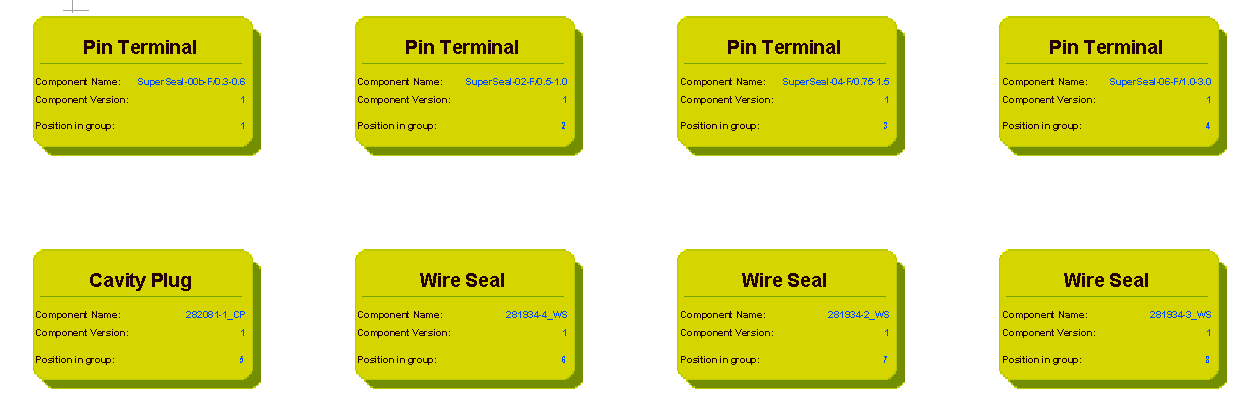
Drag the desired connector pin terminals/cavity plugs/wire seals from the Component tree of the Database Window onto the drawing sheet.
Example:
The following example contains the cavity part SuperSeal-00-F/0.3-3.0_CPTGroup:
-
Using the Cavity Part Properties - Cavity Part Group dialog box, it's also possible to define the position of the individual elements within the group.
-
Right-click on the drawing sheet and select the Save to Database command from the displayed context menu.
Which connector pin terminals/cavity plugs/wire seals are valid for the component must now be defined in the Database Editor (in this example the connector: 282087-1_CPTGroup).
-
right-click on the connector 282087-1_CPTGroup in the Component Tree of the Database Editor and select the command Edit from the displayed context menu,
-
right-click on the connector worksheet and select the command Component Properties...,
-
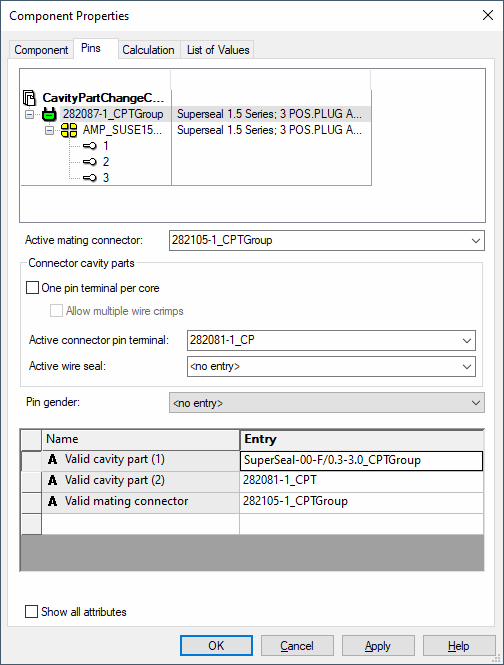
select the Pins tab in the Component Properties dialog,
-
click on the empty row under Name and select the attribute Valid cavity part,
-
in the same row select the desired "Cavity part group" under Entry,
-
now select the corresponding connector pin terminal (or cavity plug) from the Active connector pin terminal drop-down list, (If a connector pin terminal/wire seal is defined individually and additionally in a cavity part group as a valid cavity plug, the attribute for the individual connector pin terminal/wire seal can be deleted.)
-
right-click on a free area of the worksheet and select the command Save to Database from the displayed context menu.
Note
The possibility exists to display only cavity part groups. To do so, activate the checkbox List only cavity part groups in the area Valid Cavity Part in Database Editor mode under Tools -> Settings -> Database Editor -> Component.