
Customize - Menu
Menus and menu commands can be rearranged and changed.
How to open the "Customize - Menu" dialog
-
Select the Tools -> Customize... command from the main menu bar, and
-
switch to the Menu tab.
The following dialog box appears:
Image: Dialog "Customize - Menu"
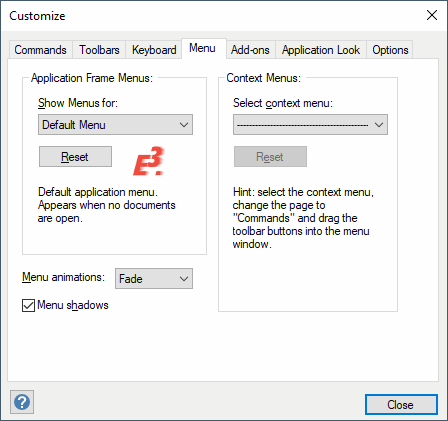
Description of the dialog "Customize - Menu"
Show Menus for
The default menu is always displayed.
Reset
If the default menu has been changed, these modifications can be reset using this button.
By pressing this button, the menu is reset to the original state, i.e. according to a completely new installation. Tools are positioned in the menu as defined in the script directory and thereby all previously placed tools are removed from the menu. However, they remain in the tools list in the Add-ons tab.
Menu animations
E3.series offers an optical effect with this function. It's possible to configure how the individual menu items are opened, e.g. unfold, slide, fade. The selected animation is valid for opening menu items upon closing the dialog with Close.
If no menu animation is desired, select None from the drop-down list.
Menu shadows
Activate this option to display a shadow under a menu.
Select context menu
Selecting one of the context menus (Context menu, DB context menu) opens a new menu window. Then switch to the Commands tab and drag the desired commands into the newly displayed context menu window.
Note
The DB context menu only allows commands from the Addons category.
The context menu defined here is then visible on the sheet or in the Project trees or Database tree, or in the Database Table as submenu 'Additional commands'.
Reset
User-defined context menus can be reset using this button. The menu is always empty when resetting.