Signal Classes
General Information
-
A signal class is a 'bundle' of signals that are defined in the project.
-
A signal class can have attributes assigned
-
Signals of a signal class can be connected to a pin
-
A signal can only belong to one signal class
-
A net can have only one signal assigned
Signal Class Definition
Signal classes can be created in the project using the Format ->Signal Class Properties command from the main menu bar.
The Signal Class Properties dialog box appears in which the desired signal classes can be defined. The lower part of the dialog box is used to assign signal(s) to the defined classes.

Existing signal classes can be renamed or deleted using the corresponding buttons in this dialog box.
The lower part of the dialog box is used to define the signals to be assigned to the signal class selected above. The desired signal can either be typed in or selected from the drop-down list.
Possible signals:
-
newly defined signals
-
already used signals
-
signals that are defined in another signal class but not yet used in one or more nets, and the net contains signals of the other signal class.
(In this case, the signals must be removed from the other signal class first.)
Usage in Project - Examples
The signals of a signal class can be used in the project like a signal without signal class assignment. The signals on a connection can be distinguished from the signals on the connected pins, provided that all signals belong to the same signal class.
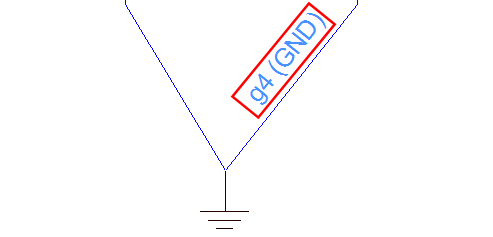
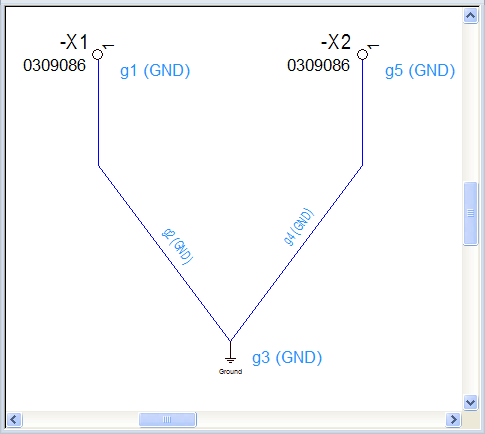
The desired signals of the created signal class can be assigned in the net. In the first example all signals in the net belong to the signal class GND.
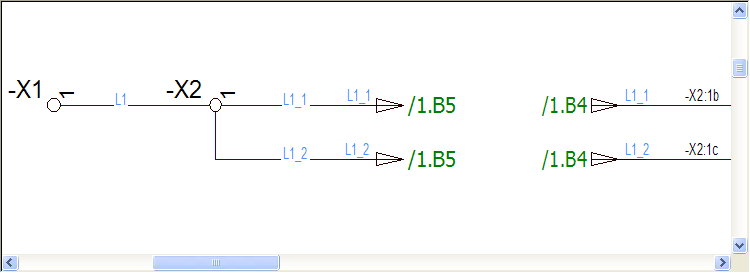
The signal is split in the second example. Signal L1 goes from terminal -X1 to terminal -X2. The outgoing connections from terminal -X2 can have other signals (in this case: signal L1_1 and signal L1_2) of the same signal class assigned.
Note
-
A signal can belong to one signal class only.
-
The signals of a signal class may only differ on the connect points.
-
References are treated like net nodes and considered to be exceptions here.
Attribute Assignment
It's possible to define attributes for a signal class. The corresponding attributes must have the 'Signal class' owner assigned in Database Editor (see also Attribute Names).
To assign attributes to a signal class in project,
-
right-click on the desired connect line in the drawing and select the Connection Properties... command from the displayed context menu, and switch to the Signal class attributes tab, or
-
select the desired connect line in the drawing and select the Format -> Connection Properties command from the main menu bar, and switch to the Signal class attributes tab.
The displayed dialog offers the possibility to assign the corresponding attributes.
Settings Definition
By default, it's not possible to assign a signal from another signal class or a signal without signal class to a net that is defined with signals of a signal class.
However, it's still possible to assign signals without signal class to the net.
To do so, open the Settings -> Connection -> Signals dialog and activate the option Allow signal changes to signals not belonging to same class in the Signal Classes section.
Purging Signals / Signal Classes
The Purge unused objects command deletes unused signals from the project, but no signal classes. Unused signals that belong to a signal class are NOT removed.
Text Types
The following text types are available for making signals and their signal classes visible:
-
TTYP_SIGNAL (#7) "Signal name" (displays the signal name only (without signal class))
-
TTYP_SIGNAL_CLASS (#1118) "Signal class"
-
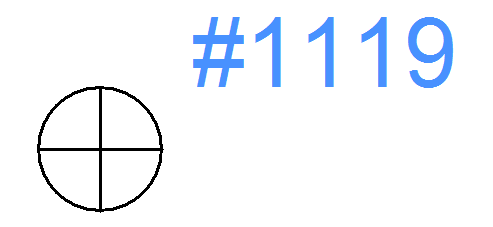
TTYP_CONNECTION_SIGNAL_CLASS (#1119) "Signal class on connection"
The text types TTYP_SIGNAL_CLASS and TTYP_CONNECTION_SIGNAL_CLASS are configurable and can be assigned in Database Editor mode using format characters.
The following formatting is available:
-
%s used for signal names
-
%c used for signal class
The text type TTYP_SIGNAL_CLASS must be grouped with a symbol pin.
Example for the configuration with both format characters
-
Define an attribute text template symbol of TTYP_CONNECTION_SIGNAL_CLASS (#1119) type within the Database editor mode :
-
right-click on the attribute text template symbol and select the context menu command Text Properties...,
-
insert the following to the Text Properties - Tab Text within the field Text : %s (%c),
-
save the attribute text template symbol in the database and update the symbols within the project mode,
-
and finally place the attribute text template symbol on the connection: