
Cabling Table
In project mode in E3.series there is a Cabling Table, in which all connected graphical connections are listed with their devices in the project. The individual conductors of a cable are listed. Wires, hoses, tubes and jumpers are not displayed in the Cabling Table. With the help of this Cabling Table cables can be placed more effectively on connections.
Note
This functionality is not valid for E3.formboard and E3.topology. Busbar connections are not displayed in the Cabling Table.
Displaying the Cabling Table
The Cabling Table can be called up as follows:
-
click on the command View -> Cabling Table in the main menu,
or -
right-click on a connection line / a device symbol and select the command Cabling Table... in the displayed context menu (see also Setting/Resetting Preselection).
Note: This context menu command is not displayed for a connection line in E3.panel.
Each row in the (Excel-like) table describes a pin to pin graphical connection and is divided into two levels:
-
In the first level (Device Level) the connections are displayed from device to device (single pin/single row). Moreover, the status of the cabling state on the graphical connection is displayed; the following is valid:
-
Red: No cabling
-
Yellow: Partial cabling exists
-
Green: Complete cabling
-
-
In the second level (Pin Level) the connections are displayed on the pin level (multi pin/multi row). Only pins are displayed which have no wires, hoses and tubes applied
Note: This level can be displayed by clicking on the
 button and hidden with the
  button.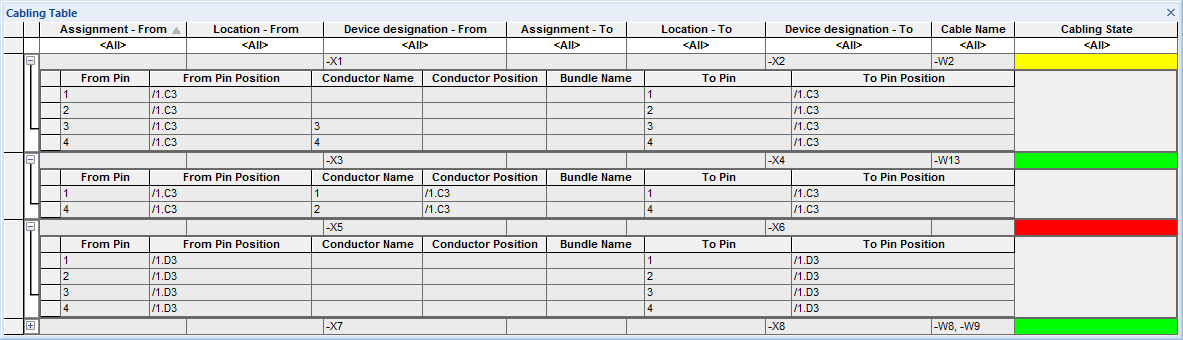
By default the columns in the first level (device level) display the following information:
- Assignment
- Location
- Device designation
- Assignment
- Location
- Device designation
- Cable Name
- Cabling State
Note
- These columns cannot be deleted
- Columns with 'From' information are marked with red
- Columns with 'To' information are marked with blue
By default the columns in the second level (pin level) display the following information:
- Pin
- Pin Position
- Conductor Name
- Conductor Position
- Bundle Name
- Pin
- Pin Position
Note
- These columns cannot be deleted
- Columns with 'From' information are marked with red
- Columns with 'To' information are marked with blue
The following attributes can be displayed within the Cabling Table depending on the database definition and the column call up:
-
(Device Level): Cable, Cable type
-
(Device Level) - From / To: Component, Device, Cable end, Cable type end, Connector
-
(Pin Level):
-
(Pin Level) - From / To:
Learn how to add columns/information in chapter Display attributes and text types in additional columns.
Global Search in the Cabling Table
It's possible to perform a global search in the Cabling Table. Thus, all columns of the device level are searched.
To start the search
-
right-click on one of the two uppermost cells in the first column of the window and select the command Search
or
click on the F7 key -
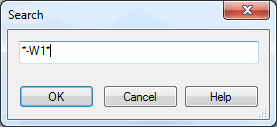
The Search
|
Search |
|
|---|---|
|
OK / Cancel |
The term to be searched in the table can be entered in the text field.
NoteA question mark '?' (for an individual character) and an asterisk '*' (for several characters) can be used as wildcards for the search.
Boolean expressions can also be used for filtering.
The following syntax operators are allowed:
With a backslash '\' the operators can be masked so that this exact character is found (Example: \&).
OK executes the search. Cancel aborts the search. |
All results are displayed in the project, where this search entry appears. Furthermore, the search term is enclosed in brackets after the cabling table header:

To reset the search
-
right-click on one of the two uppermost cells in the first column and select the command Reset Search
or
click on the key combination SHIFT + F7
Display Ignored Connection Lines in the Cabling Table
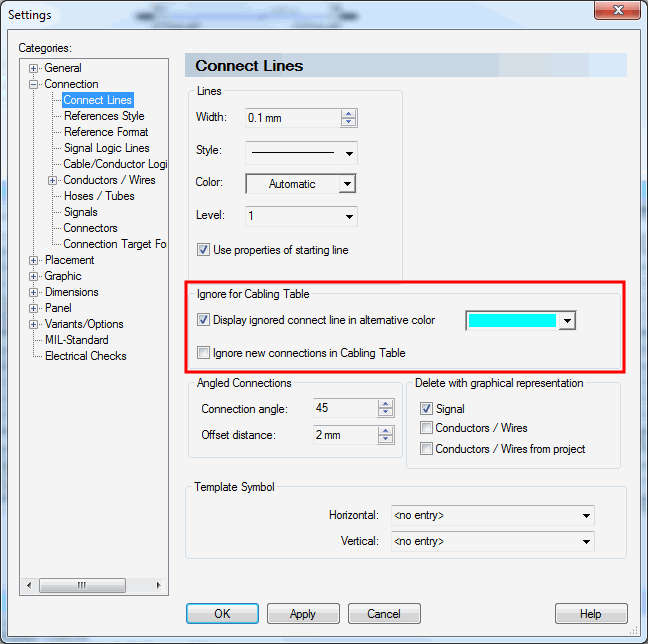
It's possible to ignore connection lines in the Cabling Table. Moreover, the connection lines to be ignored can be highlighted using an alternative
To do so, there is the section Ignore for Cabling Table in the Settings under Connection -> Connection Lines.
To ignore a connection line or the thereupon connected device that shall not appear in the Cabling Table:
-
right-click on the desired connection line or the device, which shall be ignored in the Cabling Table,
-
then select the command Ignore for Cabling Table in the opened context menu
-
the connection line or the thereupon connected device are suppressed in the Cabling Table.
Note
Connections with conductors are permanently displayed in the Cabling Table. As soon as all the conductors are disconnected on the connection, the connection line or the thereupon connected device is suppressed in the Cabling Table.
To no longer ignore the connection line or the thereupon connected device:
-
right-click on the ignored connection line or the ignored device,
-
then select the command Allow for Cabling Table in the opened context menu,
-
the connection line or the thereupon connected device is displayed again in the Cabling Table.
Context Menu Commands in the Cabling Table
Depending on where one clicks in the Cabling Table, on which level (see Displaying the Cabling Table) and column with the right mouse button, different context menu commands are available:
Insert Template Symbol
Note
This context menu command can only be called up in the first column of the Pin Level or in the columns Conductor Name, Conductor Position or Bundle Name.
After executing the context menu command Insert Template Symbol, the system jumps to the selected connection line, on which the template symbol shall be inserted. Furthermore, an alternative template symbol can be placed.
Unconnect Conductors
-
If the context menu command is executed in the Device Level, all conductors are unconnected on the device.
-
If the context menu command is executed in the first column of the Pin Level or in the columns Conductor Name, Conductor Position or Bundle Name, the conductor is unconnected on the pin.
Assign Cable...
-
If the context menu command is executed in the Device Level, the cable's conductors are assigned to the complete device.
-
If the context menu command is executed in the Pin Level, one cable conductor is assigned to the pin.
Note: The next free
Executing this context menu command opens the Assign Cable
Swap Conductors
Note
This context menu command can only be executed in the Pin Level
-
if both conductors to be swapped are from the same cable
-
if only one conductor on a free pin shall be swapped
-
To do so, press and hold the SHIFT or Ctrl key and then left-click on the desired conductor in the first column. Afterward, right-click anywhere and select the context menu command Swap Conductors:
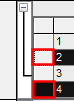
After executing the context menu command Swap Conductors, both conductors are exchanged with one another.
Device Properties...
Note
This context menu command can only be executed in the Device Level.
After executing the context menu command Device Properties..., the Device Properties - Device
Pin Properties...
Note
This context menu command can only be called up in the first column of the Pin Level or in the columns From Pin, From Pin Position, To Pin or To Pin Position.
After executing the context menu command Pin Properties..., the Device Properties - Pins
Conductor Properties...
Note
This context menu command can only be called up in the first column of the Pin Level or in the columns Conductor Name, Conductor Position or Bundle Name. Additionally, one conductor must be placed.
After executing the context menu command Conductor Properties..., the Device Properties - Wire Information
Setting/Resetting the Preselection
Defining the Preselection for the Cabling Table
By filtering using preselected connections and devices the Cabling Table can be defined accordingly. The filtering action gives the user a better overview of the Cabling Table because only the desired connections and devices are displayed.
To define the preselection for the desired connected graphical connections, which shall be displayed in the Cabling Table
-
select the desired connection line or device in the schematic,
-
right-click on one element of the selection,
-
select the command Cabling Table... in the displayed context menu,
-
this opens the Cabling Table with the preselected selection:
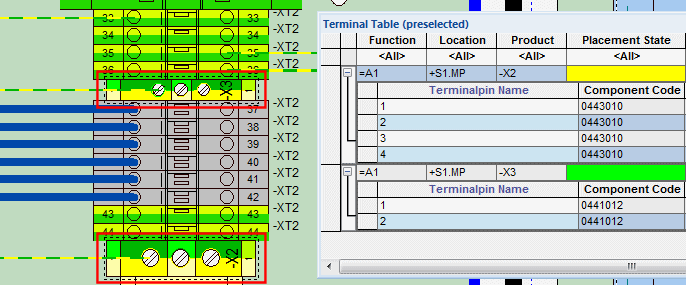
Resetting the Preselection for the Cabling Table
The filtering in the Cabling Table using preselected connection lines or devices can be reset.
To reset the preselected Cabling Table to its original state
-
right-click anywhere in the first column of the Cabling Table,
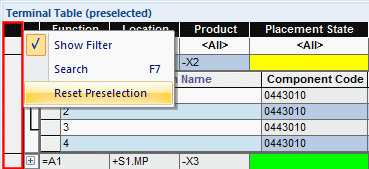
-
then select the command Reset Preselection in the displayed context menu.
After resetting, the Cabling Table appears with all connected graphical connections in the project.