
Dimension Properties - Dimension
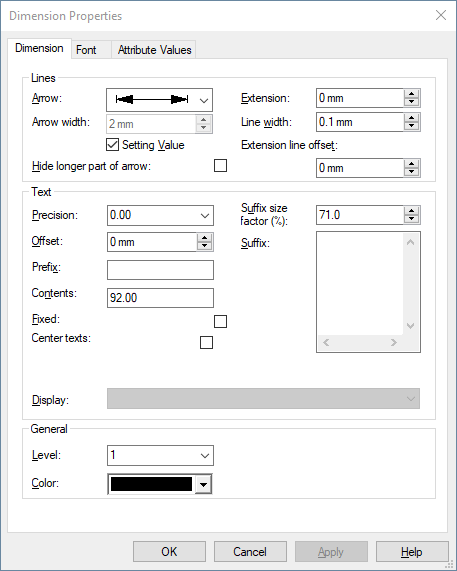
To display/modify the properties of a dimension,
-
right-click on the dimension and select Dimension Properties from the displayed context menu.
To select more than one dimension for modification, hold down the shift key, then left-click on each of the desired dimensions and right click on the final dimension to display the context menu.
A dialog box appears in which you can modify the properties of a dimension.
|
Dimension |
|
|---|---|
Lines
NoteThese settings have an effect on all parts of the dimensioning at running dimension. |
|
|
Arrow |
The desired arrow style for the selected dimension can be selected from the list. |
|
Extension |
Allows you to extend the auxiliary lines. |
|
Line width |
Allows to individually define the line width for each dimension when outputting dimension arrows. |
|
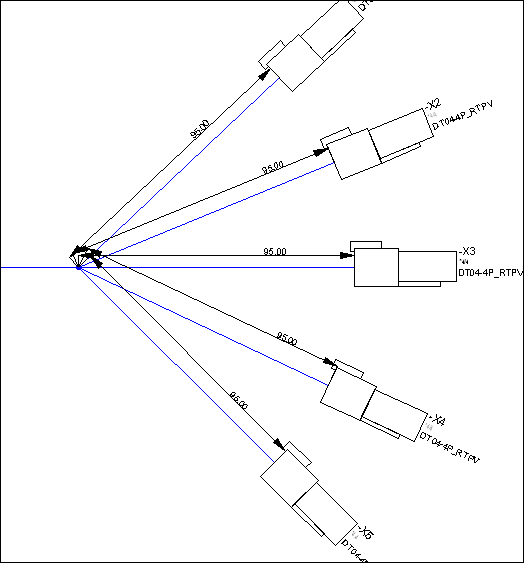
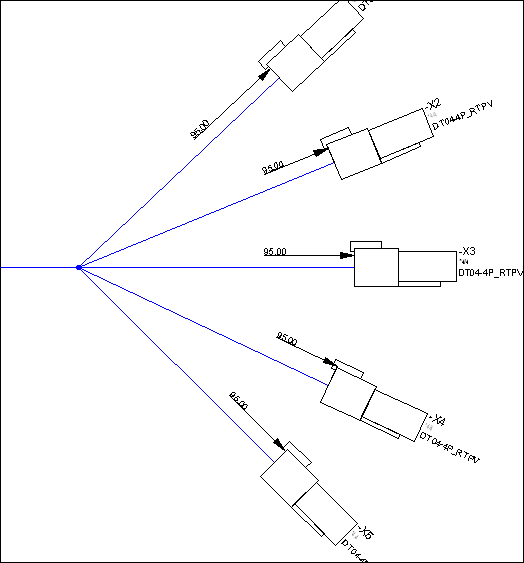
Hide longer part of dimension arrow |
Check this option to hide the longer part of a dimension line/arrow. The longer part is determined through the dimension text's position.
If the part to the left of the dimension text is not displayed, the line starts at the beginning of the text. If the part to the right of the dimension text is not displayed, the line stops at the end of the text.
If the insert point for the dimension text lies outside the coordinates, the option is ignored (this is not valid for dimensions of the type 'Along a path').
See example:
|
|
Extension line offset |
In this field the offset between the object to be dimensioned and the beginning of the extension line is defined for the selected dimension.
NoteFor all newly created dimensions the offset between the dimensioned object and the beginning of the dimension line can be defined by default using the Settings. |
Text |
|
|
Precision |
Defines the number of digits for the selected dimension text. |
|
Offset |
Defines the distance between the dimension text and the dimension line. |
|
Prefix |
Any text can be added to the dimension text. |
|
Contents |
Any user-defined text can be entered here. The option Fixed will then automatically be activated.
Depending on whether or not the option Fixed has been activated, the calculated dimension text or fixed text will be displayed.
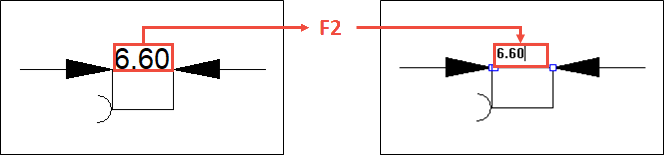
NoteSelect a dimension on the sheet and press F2 to directly enter the dimension.
|
|
Fixed |
If Fixed is checked, the calculated dimension text will be displayed and used.
If the option is checked, the text entered in the contents field (see above) will be displayed as dimension text. |
|
|
When this option is checked, the selected dimension texts are
When dimension texts are manually moved, this option is automatically deactivated for the respective dimension.
Regarding running dimensions, this option is set for all dimension parts. |
|
Rotate texts of running dimensions |
This option turns the dimension text 90 degrees to the dimension line at running dimensions.
Note
|
|
Display |
The dimension text display can be controlled through this drop-down list.
The drop-down list is active only if the dimension is added to a connect line. When several dimensions with different settings are selected, the entry field is empty.
In addition to the displayed length, it's also possible to display the net segment length, the manufacturing length (in E3.formboard) or an attribute. The attribute must be defined for the net segment (i.e. for the connect line).
The sorted list contains all attributes valid for net segments, as well as an entry for the net segment length or manufacturing length (in E3.formboard) and the displayed length. By default, the 'displayed length' is used for displaying.
Remaks
|
|
Suffix size factor (%) |
A factor for the text size of the suffix can be entered in percentage.
The text height for all suffixes (single- or multiline) is calculated based on the text height of the dimension and this factor. |
|
Suffix |
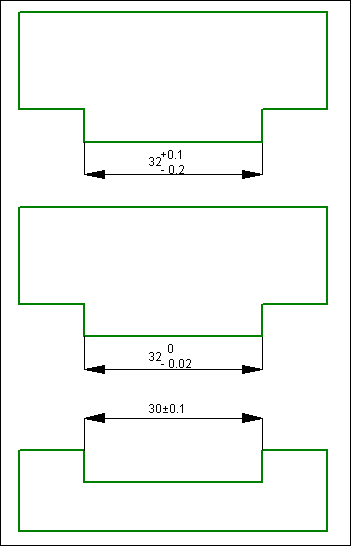
Tolerances can be defined and displayed for dimension texts.
Any multiline text and the appropriate size factor can be defined for the suffix. Pressing Ctrl+Enter within the entry field inserts a line break. The suffix text is centered vertically to the rest of the dimension text. The font used corresponds to the font used for the dimension text.
The suffix text and its factor are displayed separately from the rest of the dimension text (prefix and contents) in the drawing.
See example
|
General |
|
|
Level |
Defines the drawing level for dimensions.
In the Levels dialog (View -> Levels...), dimensions can be set invisible by unchecking the respective level in the Graphic column. |
|
Color |
NoteThis setting has effect on all parts of dimensioning at running dimension.
Defines the color of the dimensions.
If 'Automatic' is selected, the color defined in the Color Definitions dialog box will be used. |
Note
Dimension arrows with very short dimensions
If the distance between the arrows is too short to display, the arrows automatically point at the subsidiary lines 'from the outside':
|<--