
Device Properties - Connector Pin Terminals
To display/modify the active connector pin terminal of a device:
-
select the desired device in the working area and click on the command Format -> Device Properties.... Switch to the tab Connector Pin Terminals or
-
right-click on the symbol assigned to a device and select the command Device Properties from the displayed context menu. Switch to the tab Connector Pin Terminals or
-
right-click on a pin or pin text of the symbol and select the command Pin Properties from the displayed context menu. Switch to the tab Connector Pin Terminals or
-
right-click in the device tree of the Project window on the desired device and select the command Pin Properties from the displayed context menu. Switch to the tab Connector Pin Terminals.
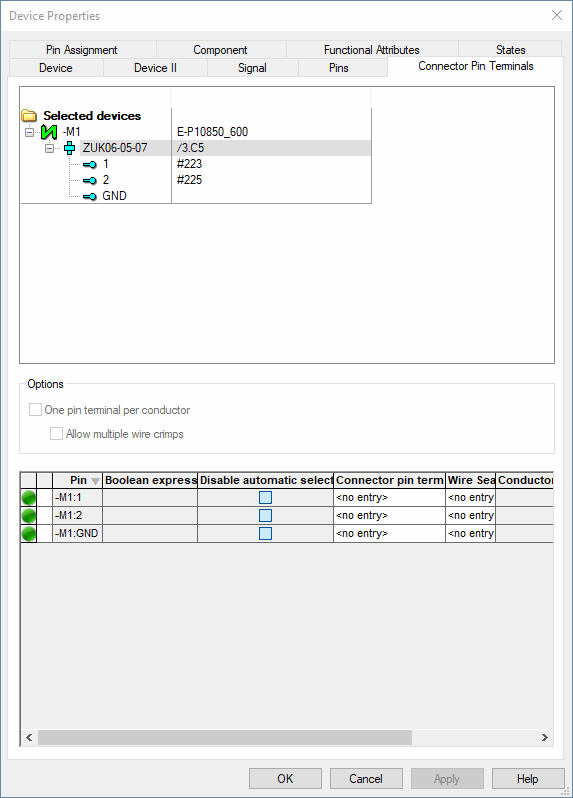
The following dialog box is displayed:
|
Device Properties - Connector Pin Terminals |
|
|---|---|
Options |
|
|
One pin terminal per |
When checked, one pin terminal per
See example |
|
Allow multiple wire crimps |
NoteThis check box can only be changed when the check box One pin terminal per conductor is checked.
When checked, multiple wire crimps can be used.
See example |
|
|
Each wire shows a status symbol in the first column.
NoteA wire instance is created automatically
If the check box Show information for option combinations (under
|
|
|
As soon as a wire is placed on a pin, a drop-down menu containing additional wire information appears after pressing the button
These columns cannot be changed and are merely for informational purposes.
Click on the button
NoteIf a pin is not able to accept all wires based on the defined connector pin terminal, the wires are automatically distributed to equivalent pins. The unplaced wires are displayed in the wire information as gr
|
|
Pin |
Displays the pin names of the selected device. |
|
Boolean Expression |
Displays, if existing, the defined Boolean expression (harness derivative, option) on the wire.
NoteOptions are displayed in square brackets. Example: [Option 1]. |
|
Disable automatic selection |
If this option is activated, the connector pin terminal is not determined depending on the setting Use physical data of
All other checks under Conductor Assignment Procedure are then valid for the connector pin terminal. |
|
Displays the current connector pin terminal for each wire in the selected connection path.
Clicking on the cell opens a selection list from which a connector pin terminal can be selected.
Once this is done, the option Disable automatic selection is activated automatically
See under: Use of cavity parts in project |
|
|
Wire Seal |
Displays the current wire seal for each wire within the selected connect path. When the
Clicking the cell opens the selection list where a wire seal can be selected. Furthermore, the option Disable automatic selection is automatically activated in the same line.
See under: Use of cavity parts in project |
|
|
Displays the |
 Active
 Inactive
 .
. to hide the drop-down menu.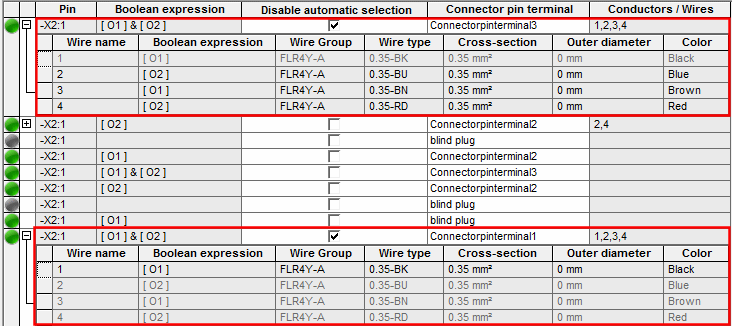
Note
Inserts of connectors with inserts are still edited or modified in the Pins tab, as usual.
-
In Database Editor mode, the tab Connector Pin Terminals does not exist. Active connector pin terminals are still edited or modified in the Pins tab.