
Device Properties - Pins
To display/modify the pin properties of a symbol associated with a device,
-
with the required device selected in the Drawing Window, select Format->Device Properties... from the Main Menu bar and select the Pins tab, or
-
right-click on a symbol that has been assigned to a component and select the Device Properties... command from the displayed context menu and select the Pins View, or
-
right-click on an individual pin or pin text of the symbol and select the Pin Properties... command from the displayed context menu, or
-
right-click on the required device in the Device tree of the Project window and select the Device Properties... command from the displayed context menu and select the Pins View.
The following dialog box appears:
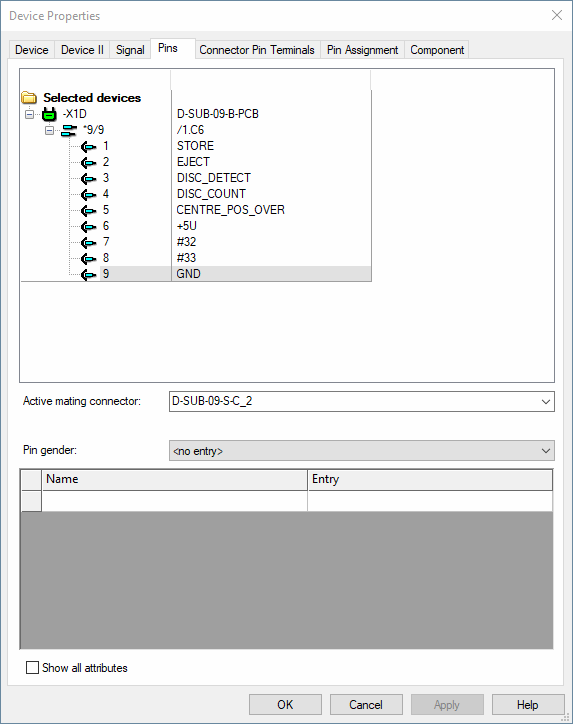
The top part of the dialog box displays a Tree View of all pins, and their location on the drawing for the selected symbol.
Pins of devices without component type (see Device Properties->Device View) can be renamed in the Tree View. To do so, press hotkey F2 when the desired pin is selected in the Tree View and type in the new name.
The bottom part of the dialog box contains the table for the modification of attributes.
To add additional attributes, select the empty Name field and left-click again to display a drop-down list box, displaying all of the available attributes for pins, from which a selection can be made.
Attributes that can be used once only and have already been associated with a pin, will not be displayed again in the list.
Select the Entry field to display a drop-down list box, containing all of the values that have already been used for that attribute within the project. If the required value does not exist, type in the new entry in the field.
Click on the Entry field containing a translatable text and press F3 to display the Translation Table dialog box. As in Database Editor mode individual columns can be sorted in ascending or descending order. Texts can be selected from the database.
Attention
The dialog box will not be displayed, if the entry field is editable (a field is editable, if the drop-down arrow is displayed at the right edge of the field).
If a device has been selected, instead of an individual pin(s), all modifications apply to all pins of the selected symbol.
The assigned signal name of the pins (unchangeable) is displayed in the second column of the pin tree view next to the pin name.
|
Pins |
|
|---|---|
|
Active Mating connector |
The drop-down list box displays all valid mating connectors that have been defined in the Component Properties -> Pins dialog box as valid Mating Connectors for that pin.
If the required entry does not exist, type in a new mating connector. This may be any entry the user would like to use and need not necessarily exist in the database. |
|
Active Connector pin terminal |
The drop-down list box displays all valid connector pin terminals that have been defined in the Component Properties -> Pins dialog box as valid Connector Pin Terminals for that pin.
If the required entry does not exist, type in a new connector pin terminal. This may be any device that need not necessarily exist in the database. |
|
Pin gender |
Defines the pin gender.
The following pin genders can be selected:
The pin gender is relevant only if the setting Allow only compatible pin genders to plug is activated in the Connection (electric) or Connection (fluid) Settings. |
|
Pin / Name / Entry |
Click on the column header to sort by Pin or attribute Name.
For example, if the component has several masters, many slaves and many pins and several attributes for each pin, it might be useful to sort by pins.
The column Pin is only displayed if Show all attributes is active. |
|
Show all attributes |
Activate this option to modify the attributes of all pins of a component simultaneously
The option is only available, if the dialog is activated for a single component.
If Show all attributes is active, it is not possible to add further attributes. |
Variants/Options
This part of the dialog is only displayed if variants/options have been defined in the project and the Standard Mode is active, but is inactive with this tab. |
|
To delete an attribute, right-click on the left (gray) column of the table, adjacent to the attribute to be deleted, and select the Delete Attributes... command from the displayed context menu.