Device Properties - Assign Variants/Options
This tab is only available when variants/options are defined in the project!
To display/modify the properties of a device,
-
right-click on the device and select Device Properties... from the displayed context menu. To select more than one device for modification, hold down the shift key, then left click on each of the desired devices and right click on the final device to display the context menu. Then switch to the Assign Variants/Options tab.
-
Or left-click on a device to highlight it (or for multiple devices, left click on each device while holding down the 'shift' key) and select Format -> Device Properties... on the Main Menu bar and switch to the Assign Variants/Options tab.
-
Or right-click on a device in the Device Tree View of the Project Window and select Device Properties... from the displayed context menu and switch to the Assign Variants/Options tab.
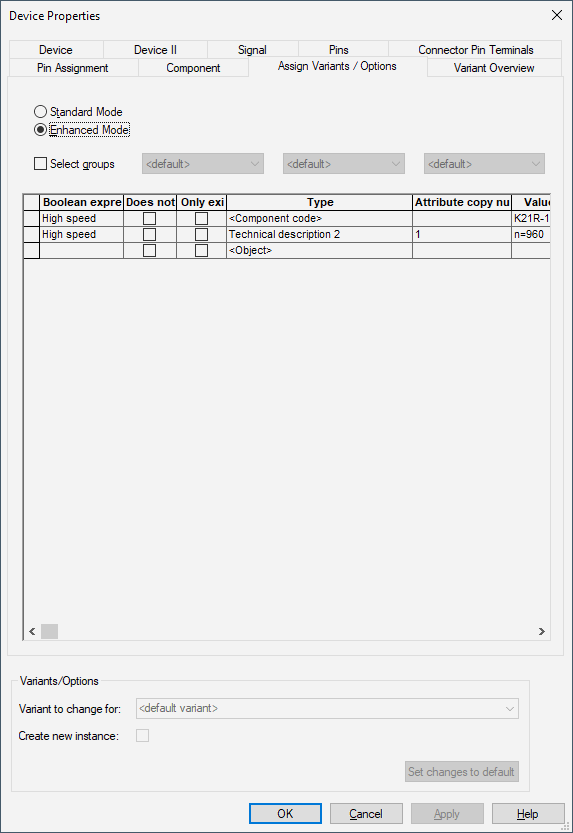
The following dialog box appears:
Standard Mode

Enhanced Mode
|
Assign Variants / Options |
|
|---|---|
Standard ModeThe Standard Mode allows to assign variants/options defined in the project to the selected object(s). Displays all options existing in the project in the below Variants/Options table.
When selected and confirmed with OK, the corresponding Variants/Options section is displayed in the other tabs of the Device Properties dialog box. |
|
|
Variant/Options |
Displays all options existing in the project. Activate the checkbox to assign the corresponding option to the selected object(s). The individual options are marked with an O at the beginning of the row.
To delete an option, right-click on the O of the option to be removed and select the Delete command from the displayed context menu.
NoteVariants can only be assigned to connections, graphics and texts. |
Enhanced ModeCheck this option to define Boolean expressions. After first working in Enhanced Mode, this mode is defined project-wide.
It is not possible to switch back from Enhanced Mode to Standard Mode. |
|
|
Select groups |
The drop-down list displays all groups and aliases available in the project in order to select them for Boolean conjunction using the corresponding buttons.
Up to three groups/aliases can simultaneously be activated.
When selecting <Groups> , <Aliases> or a group, the corresponding existing operators and group names, alias names and sub-group names are displayed as buttons. |
|
Boolean expression |
Select the corresponding buttons to define a boolean expression. These buttons are only available if at least one group/alias has been defined for Select groups.
The following syntax operators are allowed:
Basic forms of boolean conjunctions:
Different operators on the same level must be differentiated by brackets, except for NOT operators.
ExamplesOPT-1 & ( OPT-2 | OPT-3 ) OPT-4 & !OPT-5
Aliases can also be defined manually (see also Defining Aliases for Variants/Options). |
|
Does not exist/Only exists |
Here, either the state Does not exist or Only exists can be defined on a device. The device will or won't be displayed corresponding to the appropriate variant constellations within the working area.
Note
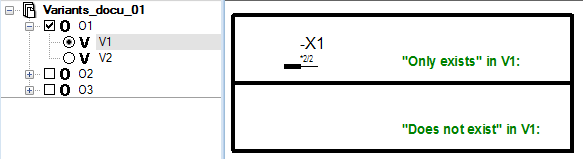
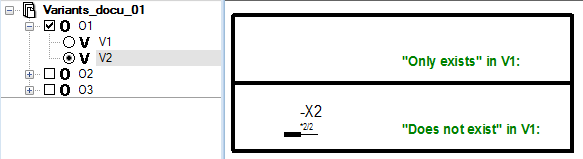
ExampleFor connector -X1 the state 'Only exists' in V1 is defined. For connector -X2 the state 'Does not exist' in V1 is defined.
Variant V1 is active:
Variant V1 is inactive:
|
|
Type |
The following types can be assigned:
|
|
Attribute copy number |
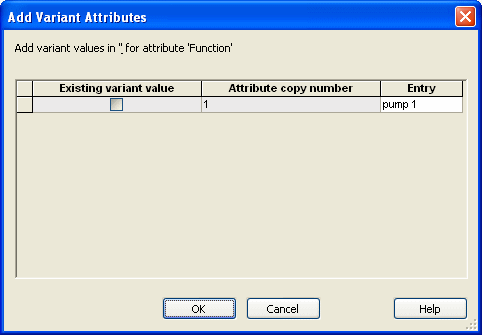
When an attribute exists several times on a device, it's possible to assign another value to each attribute instance in every variant.
When an attribute is selected in the Type column, the Attribute copy number column displays the number of the attribute copy. After clicking the
All values can then simultaneously be defined in the Entry column for all copies. The checkbox in the Existing variant value column defines which copy has already a value assigned that differs from the default value. Upon closing the dialog with OK these definitions are taken over to the Value column of the Assign Variants/Options tab.
|
|
Values: |
Defines the corresponding values of the type defined for Type. If for example <Component Code> is defined, the component code can be defined as value. |
 button, a dialog box appears listing all copies of the selected attribute.