
Customize - Application Look
The interface of E3.series can be changed to several themes in the Customize dialog.
How to open the "Customize - Application Look" dialog
-
Select the Tools -> Customize... command from the main menu bar, and
-
switch to the Application Looktab.
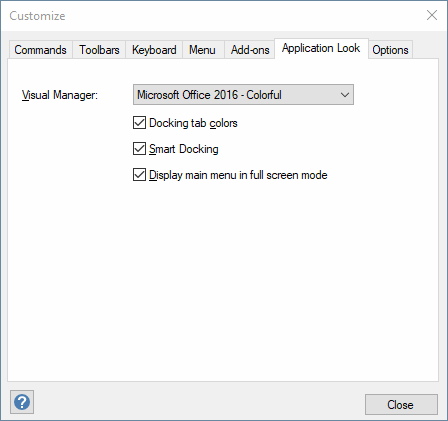
The following dialog box appears:
Image: Dialog "Customize - Application Look"
Hint
It's possible to define another application look for Database Editor mode which simplifies differentiation between Project and DBE mode.
Description of the dialog "Customize - Application "
Visual Manager
Select the desired interface from the drop-down list.
The following looks are available:
-
Microsoft Office 2010 - Black
-
Microsoft Office 2010 - Blue
-
Microsoft Office 2010 - Silver
-
Microsoft Office 2013 - DarkGray
-
Microsoft Office 2013 - Gray
-
Microsoft Office 2013 - White
-
Microsoft Office 2016 - Black
-
Microsoft Office 2016 - Colorful
-
Microsoft Office 2016 - DarkGray
-
Microsoft Office 2016 - White
The changes to the interface are immediately recognized without having to close the dialog field.
Docking tab colors
The docking tab colors are highlighted in the corresponding color of the defined interface.
Smart Docking
This option is checked by default.
When this option is checked, the area where the window is currently docked (while arranging and docking windows, tables and toolbars) is highlighted.
When this option is unchecked, only the window's contour is displayed when docking.
See also: Docking and Arranging Windows, Tables and Toolbars
Display main menu in full screen mode
With active check box the main menu bar is displayed in full screen mode.
Project-, database- and output windows as well as tables can be displayed in full screen mode via the main menu bar.