Zooming
There are several ways to zoom in on a sheet, set specific display areas, zoom out and display different areas of one sheet concurrently.
Zooming in
To enlarge the sheet view, i.e. to zoom in, define the first corner of the zoom area and
-
Use View -> Zoom on the Main Menu bar or the Zoom button
 on the Schematic Toolbar and click any start point in a sheet window,
 -
or right-click anywhere within a sheet window and select Zoom from the appearing context menu. The start point is already defined by the location of the cursor.
-
Or simply press Hot Key 'Z' anywhere in a sheet window. Again, the start point is already defined by the location of the cursor,
-
or click and hold the middle mouse button on a three-button mouse.
Then drag the cursor to the desired target position and release the mouse button to define the zoom area.
The current window will display the defined zoom area. It will also be indicated by a rectangle displayed in the Preview window (see example).
Using the rectangle's handle it is possible to resize the zoom area within the Preview window, i.e. the rectangle can be dragged larger or smaller. Furthermore, the complete zoom area can be moved within the Preview window (Panning).
Zooming out
To minimize the sheet view, i.e. zoom out,
-
select View -> Fit to Window on the Main Menu bar, or select the Fit to Window button
 on the Schematic toolbar,
 -
or right-click anywhere within a sheet window and select Fit to Window from the displayed context menu
-
Or type Hotkey 'O' (overview) anywhere in a sheet window.
The current window will display the entire sheet.
In case you want to enlarge the zoom area but do not want to have the entire sheet displayed, just press and hold the <Ctrl> key and use the mouse wheel to activate the Dynamic zoom.
Scrolling downwards scales up the zoom area.
Defining ratio to zoom in/out
Using the buttons Zoom in and Zoom out
 from the Schematic toolbar, it's possible to enlarge or scale down the current zoom area by the value defined under Tools -> Settings -> General -> Zoom / Pan.
The defined ratio is set to 3% by default, and can be set to 0.1 and 100% in the Zoom In/Out section.
This ratio is also used when zooming with the scroll wheel in the 2D view.
The shortcut key '+' can be used for zooming in and the key '-' can be used for zooming out.
Moving within a zoomed window (Panning)
To move the zoom area on a 2D sheet use the Shift key and hold the middle mouse button pressed.
By pressing the Shift key and simultaneous scrolling with the middle mouse button the zoom area is horizontally moved.
To move the zoom area using the arrow keys, activate the Enable panning with arrow keys option in Tools -> Settings -> General -> Zoom / Pan.
What is more, the scroll bars of the sheet window can be used for panning, or move the dashed zoom outline within the Preview window by dragging it with the left mouse button.
Simultaneously displaying several sections of the same sheet
To simultaneously display various areas of a sheet, select the Window -> New View command from the Main Menu.
This will create a new window displaying the entire view of the sheet currently displayed in the active window.
Dynamically zooming in / out
Press and Hold the <Ctrl> key and use the mouse wheel to activate a dynamic zoom. The cursor position defines the middle of the zoom area.
Depending on the scroll direction the zoom area can be scaled up or down. The corresponding 'zoom rectangle' will be displayed in the Preview window where the zoom area can also be resized.
To resize the zoom area from within the Preview Window click on the 'resize handle' on the lower right corner of the zoom outline rectangle and move it to select the desired size. The center of the original zoom area is kept as new center point.
The zoom area changes symmetrically in both directions. The frame, displayed in the Preview area, is drawn in exactly the same aspect ratio as the Drawing window.
Automatically adjusting sheet view to selected object
To automatically adjust the displayed sheet view to the selected object on the drawing sheet, select the View -> Adjust zoom command from the main menu bar, or click hotkey J, or use the Adjust zoom button  from the toolbar.
Full Screen Mode for Workspace
With the full screen mode the workspace area of one or more sheets is projected on the complete screen. This is advantageous for drawings with numerous components.
Note
This functionality is only available for a project that is already opened.
With active check box Display main menu in full screen mode (within the
Starting the Full Screen Mode
To start the full screen mode,
-
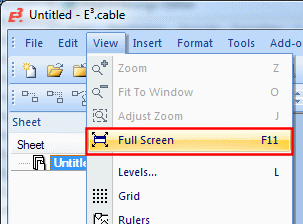
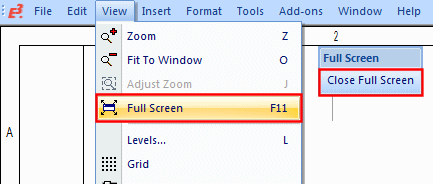
select the command View -> Full screen in the main menu, or
-
press the F11 key.