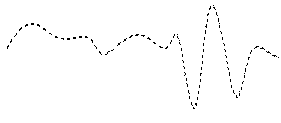
Round (Curved, Arced...) Connect Lines
Splines are used when creating curves and surfaces (free form curves and areas used in shipbuilding, aircraft construction and automotive engineering).
To create curved connection lines,
-
Start by
-
selecting Insert -> Curve Connection from the Main Menu bar
-
or by clicking on the
 button on the Connect Toolbar
-
or by right-clicking on the connect point on a symbol and selecting Curve Connection from the displayed context menu. (In this case the connect line is already started and connected to the symbol connect point.)
-
or simply by using Hotkey 'B' anywhere within a sheet window.
-
-
Draw Curve Connection
-
When the mouse is moved across a valid connect node, the cursor changes shape.
-
Then clicking on the left mouse button starts the curve connection at that connect node.
-
Move with the cursor away from the start point and click to insert intermediate points into the connect line. A curve is created using each point as part of the spline connection.
-
-
End Curve Connection
-
by clicking on another 'valid' end point (completes the connection)
-
or by right-clicking and selecting Open End to create an open-ended connection which can be completed later.
-
or by double-clicking anywhere to create an open-ended curve connection.
-
-
Change Shape of Curve Connection
-
To edit an existing curve, right-click on it to display the context menu and select the Edit points command. The command is only available in the context menu, if one graphic line has been selected.
-
To change the shape of a curve drag one of the points that define the curve to the new position.
-
To delete a handle (point) after selecting the Edit points command, right-click on the pint and select the Delete point command from the displayed context menu on the desired point. Afterwards the curve is correspondingly changed.
-
To add a handle (point) after selecting the Edit points command, right-click on the line and select the Add point command from the displayed context menu. When Adding pints the curve is not changed, but adds a point for better manipulation of the curved line.
-
To leave the Edit points mode, select the Stop editing points command from the context menu or select the ESC button.
-
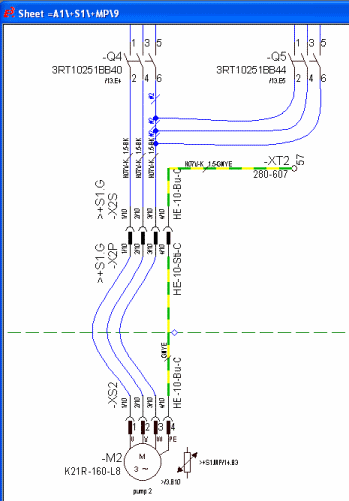
Example
Example in E3.formboard
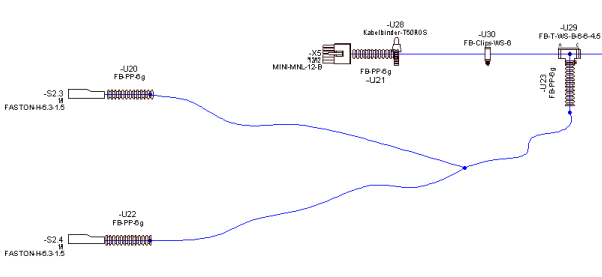
Regarding E3.formboard
All formboard commands such as Displaying or Changing the Effective Direction, Adjusting Segment Length, Adding, Unlocking, Locking Nodes and so on can be executed on curve connections.
Change Connection Line Segment of Line to Curved One (and Vice-Versa)
In E3.series it is possible to change a connection line segment of a line into a curved one (and vice-versa).
To do so, there are the new context menu commands:
-
Change connect line to spline
-
Change spline to connect line
This functionality can also be executed using the new symbols:
-
 Change connect line to spline
-
 Change spline to connect line
Note
These symbols are not predefined in the standard toolbar but can be selected from the category Misc accelerator under Tools > Customize... -> Tab Commands for adapting the toolbar as required.
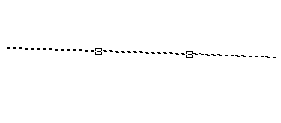
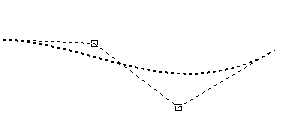
To change a connection line segment of a line into a curved one
-
Select the desired connection line segment,
-
right-click and select the context menu command Change connect line to spline
or left-click on the symbol
Change connect line to spline
Note
After changing the connection segment to a curve, the editing point mode is activated.
By right-clicking on the curve an additional point can be added to the curve using the context menu command Add point. To delete three or more points, use the context menu command Delete point.
With the context menu command Stop editing points or clicking anywhere in the workspace, the editing mode is terminated.
To change a curved connection line segment to a line
-
Select the desired curved connection segment,
-
right-click on the context menu command Change spline to connect line
or left-click on the symbol
Change spline to connect line
Note
The start and end points of the curve are used for the line.