Text Properties - Font
To display/modify text font,
-
right-click the text and press F2, or
-
right-click on the text, select Text Properties... from the displayed context menu and select the Font view. To select more than one piece of text for modification, hold down the 'shift' key, then left-click on each piece of text and right-click on the final one to display the context menu, or
-
left-click on the text to highlight it (or for multiple text, left-click on each piece of text while holding down the 'shift' key), select Format -> Text Properties... from the Main Menu bar and select the Font view.
-
Double left-click on the text.
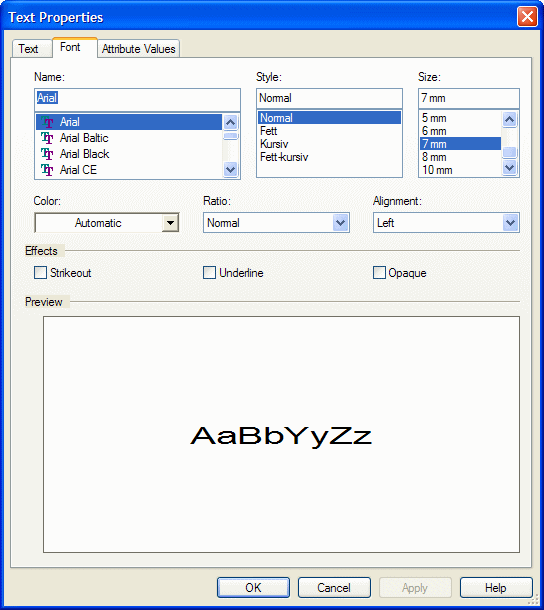
The Text Properties dialog appears:
|
Font |
|
|---|---|
|
Name |
Any installed Windows font can be selected for use with text. The Preview field will show a sample of the selected font. |
|
Style |
Defines the font style to be used, e.g. 'normal', 'bold', 'italic' or 'bold-italic'. If a graphic dimension line is selected, the field is inactive. |
|
Size |
Defines the text height measured in drawing units (0.1mm). |
|
Color |
Defines the text color.
If 'Automatic' is selected, the color defined in the Color Definitions dialog box will be used.
If a graphic dimension line is selected, the field is inactive. |
|
Ratio |
Text can be drawn narrower or wider than the normal font by selecting one of the radio buttons.
If a graphic dimension line is selected, the field is inactive. |
|
Alignment |
You can align text with the left and right margins or center it in between both margins. By default, the text is aligned with the left margin.
If a graphic dimension line is selected, the field is inactive. |
|
Selects additional effects to be applied to the text.
If a graphic dimension line is selected, the field is inactive. |
|
|
'Strikeout' will draw a line through the text string. |
|
|
'Underline' will draw a line beneath the base line of the text string. |
|
|
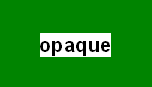
The option 'Opaque' fills the text box with the background color before outputting (in contrast to the Ballooning Rectangle without borders).
If the text is, for example, dragged onto a colored graphic, the text will be placed in the current background color (in this case white).
See example below:
|
|
|
Preview |
Shows a WYSIWYG representation of how your text will look with the selected options applied. The sample changes as you apply different settings in the dialog. |