Save as

To save a file as a special file type,
  • select the File -> Save as... command from the Main Menu bar and

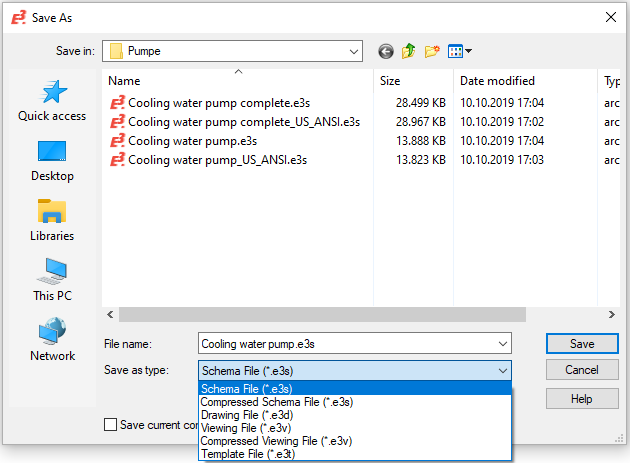
  • complete the following dialog box:


E3.series files can be compressed when saving a file.


When saving an already compressed project using Save as, the corresponding file type (e.g. 'Compressed Schema File (*.e3s)' is already preselected in the 'File name' field.


To unpack the compressed file, select the desired File type (e.g. 'Schema File (*.e3s)'in the Save as dialog.


Note

When automatically saving (Autosave), the files are always saved being unpacked.


Save as

Save in

Selection of drive and folder to save the file in.

File name

Define a file name.

Save as type

The predefined file types are:

  • Schema File (*.e3s)

  • Compressed Schema File (*.e3s)

  • Project file (*.e3sx) - This format is only available with a valid Distributed Design license and when starting E3. using the start-up parameter/distdesign.


    If no Distributed Design license is available or E3. has not been started with the start-up parameter /distdesign, files cannot be saved in the format *.e3sx.

  • Drawing File (*.e3d)

  • Viewing File (*.e3v)

  • Compressed Viewing File (*.e3v)

  • Template File (*.e3t)

  • Redliner Intermediate Save File (*.e3n)

Save current configuration without variants/options

Note

This check box

  • only appears if variants/options exist in the project

  • doesn't appear if the field all is selected under Variants: in the section Activation of Variants /Options in the Settings -> Variants/Options -> Display

  • doesn't appear if all variants are activated simultaneously


If checked, a variant/option project is saved as follows:

  • Only the current configuration with the currently active objects is saved. All inactive objects are deleted from the project.

  • After saving, all variant/option information (e.g. variant project window) is deleted from the project. The project is now completely free of variants/options (as well as packages and configurations).


Note

  • Only the file types *.e3s and *.e3v can be saved. For all other file types the check box Save current configuration without variants/options is grayed-out.

Save/Cancel

Select Save to close the dialog box and save the file with the information defined, or Cancel to abort the command.