PDF Export - Advanced Settings
This command is only active, if the appropriate license is available!
To open the Advanced Settings dialog, click on the Advanced button in the PDF Files dialog.

|
Advanced settings |
|
|---|---|
|
Export Version |
Select the Adobe Acrobat® version to be used for creation of the file. Version 12 is predefined. |
Pagination |
|
|
Split by Defined Print Area |
Select this option to split the drawing by the defined print area. |
|
Select Pages... |
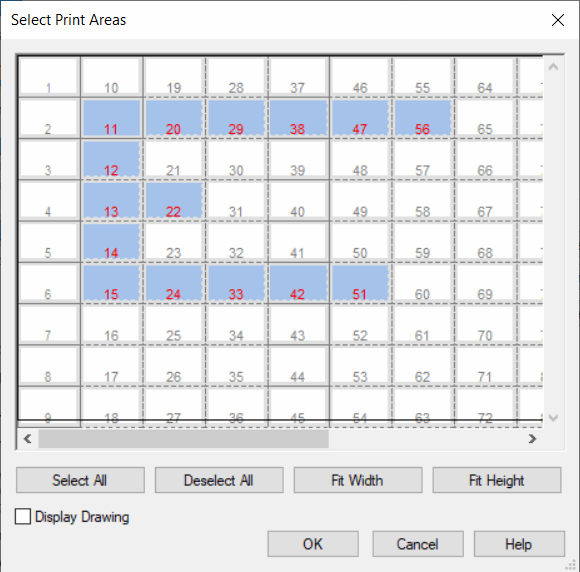
When only one sheet is to be exported and print areas are defined for the sheet format, individual print pages can be selected in the subsequent dialog Select Print Areas:
Upon opening the dialog, no print pages are selected. Double-clicking on a print page selects or deselects the corresponding page.
If the defined print area including the margins is too big for the sheet format of the currently defined printer, a corresponding message is displayed and the dialog will not open. |
Options |
|
|
Select Color |
Export color of all texts and lines can be defined and selected from the drop-down list:
Displaying in gr
In the case of solid color fills,
the output depends on how dark the fill is. |
|
Bitmaps in original color |
When this option is checked, images are exported to the PDF file with the colors in which they are defined in the project.
This option can only be checked, if Gr |
|
Export PDF/A standard |
Exports in PDF/A standard. PDF/A represents a standard format to use the PDF file for longterm archiving of electronic documents.
Note
|
|
Highlight jump |
When this option is checked, clicking on a reference referring to another spot in the PDF file, the corresponding target is highlighted and flashed.
NoteThis option cannot be checked, when Export PDF/A Standard is activated.
Highlight color depends on the defined setting. |
Document Security |
|
|
Printing not allowed Modifying not allowed Copying not allowed |
To protect data, PDF files exported from E3.series can also be protected, i.e. removing texts and pictures can be restricted or password-protected.
When one of these options is checked, a password has to be defined to confirm document security. |
|
Password |
The password must not contain any blank spaces or be longer than 32 characters. In both cases, a corresponding message is displayed. |
Compression Ratio |
|
|
No compression / |
Using this option the compression can be defined:
|