
View Assignment
For definition of a component view in the database, a view must be defined in the database when editing any component. This can be accomplished by loading a symbol on the component sheet using the Place as View command.
To do this,
-
right-click on a symbol in the Database tree and select the Place as View command from the displayed context menu.
-
Assign the desired component pins to the symbol pins of the view in the View Assignment dialog box.
-
Right-click on the view on the component sheet and select the View Assignment... command from the displayed context menu.
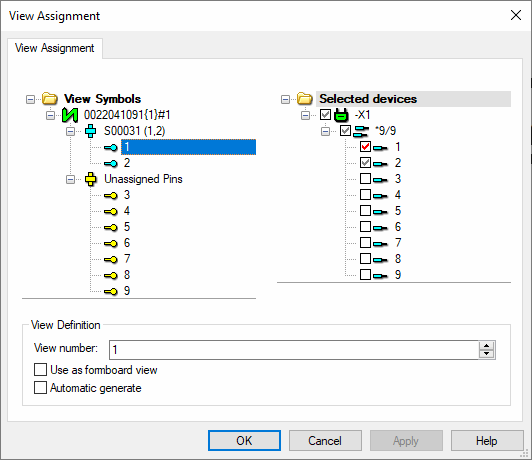
The following dialog box appears:
|
View Assignment |
|
|---|---|
|
View Symbols |
Displays the complete view structure with its nodes. |
|
Selected devices |
Lists all pins of the active component. Use the checkboxes in the right tree to mark the pin/pins that is/are to be assigned to the node selected in the right tree. This makes it also possible to remove already assigned pins (i.e. by un-checking the related appropriate box).
If pins are already assigned to another node of the same view, then the checkboxes are grayed out and can no longer be assigned. Nodes selected in the left tree, are highlighted graphically on the component sheet (in pink color). |
View Definition |
|
|
View number |
Defines the default view number. This selection list also displays formboard views. |
|
Use as formboard view |
When the view is to be used as formboard view also, this option must be checked. |
|
Automatic generate |
This option defines whether this view will always be created as 'unplaced' in the project, when taking over the component into the project. The component is also automatically loaded/copied when copying the component. If this is not desired, the view must be deleted afterwards. |
Note
-
By double-clicking on an element of the view definition in the database tree, this view is activated and all other elements, which do not belong to this view, will become grayed out.
-
If a symbol is placed on the sheet using the Place as Symbol command (from the component tree) or using Place (from the symbol tree), it is automatically assigned to the current view. In order to create a new view, the Place as View command has to be executed on a symbol once again. Here a new view will be created with the next free view number.
-
In order to later change a view symbol into another view, there is the new View Number option (in the Symbol Properties).
-
For the definition of bus pins, which are used more frequently in connection with this functionality, see also Components and symbols with bus pins.