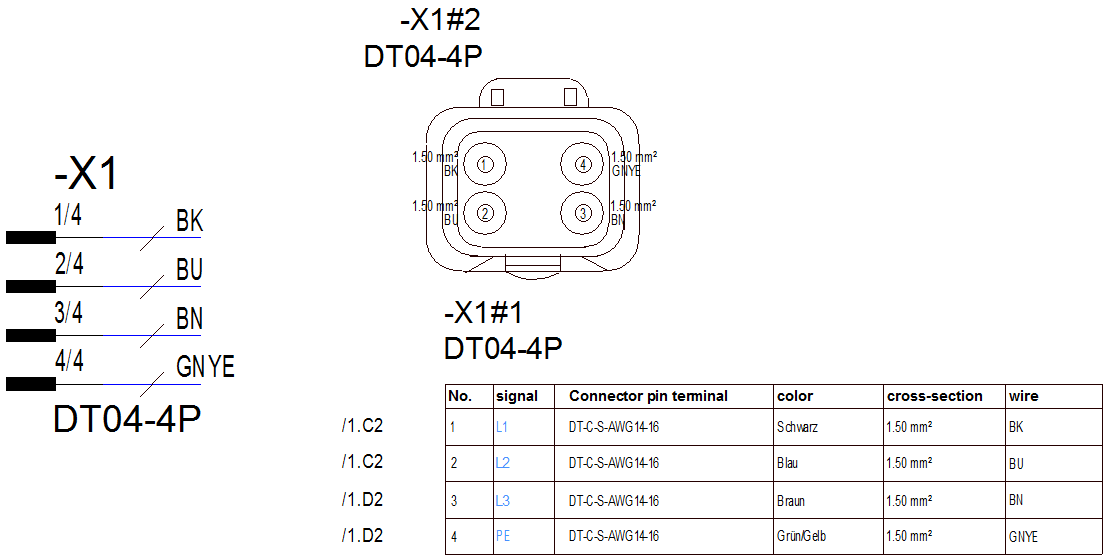
Symbol Views on Normal Device Symbols
In E3.series it's possible to define 'normal' device symbols as device views of connectors (or other devices).
With the device view it's possible to receive information directly regarding all pins and connected connections or
The desired information can be easily created for the symbol of the device view in the Database Editor using text types.
Preparations in the Database Editor
1st Step: Create/edit symbol for device view
To create or edit a symbol for the device view
-
select the main menu command Tools -> Start Database Editor
-
this opens the Database Editor
-
right-click on the desired symbol which shall be used as the (template for) the device view in the component or symbol view of the database tree
-
select the context menu command New or Edit
-
this opens the symbol for editing in the workspace
-
right-click on the symbol and select the context menu command Symbol Properties...
-
select the Symbol tab in the Symbol Properties dialog
-
select the Type: 'Normal' in the drop-down list.
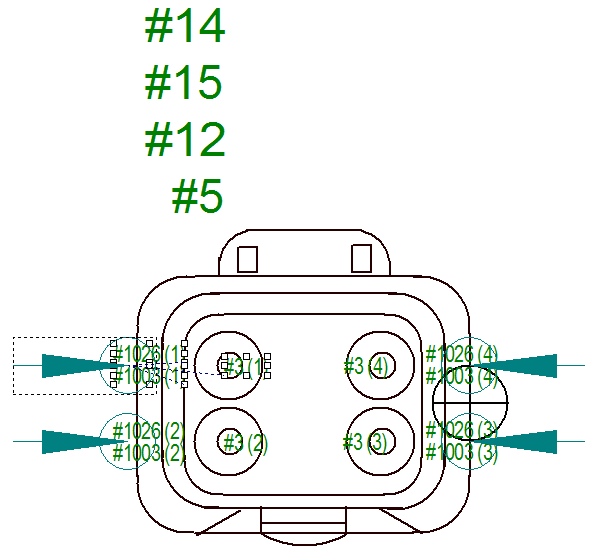
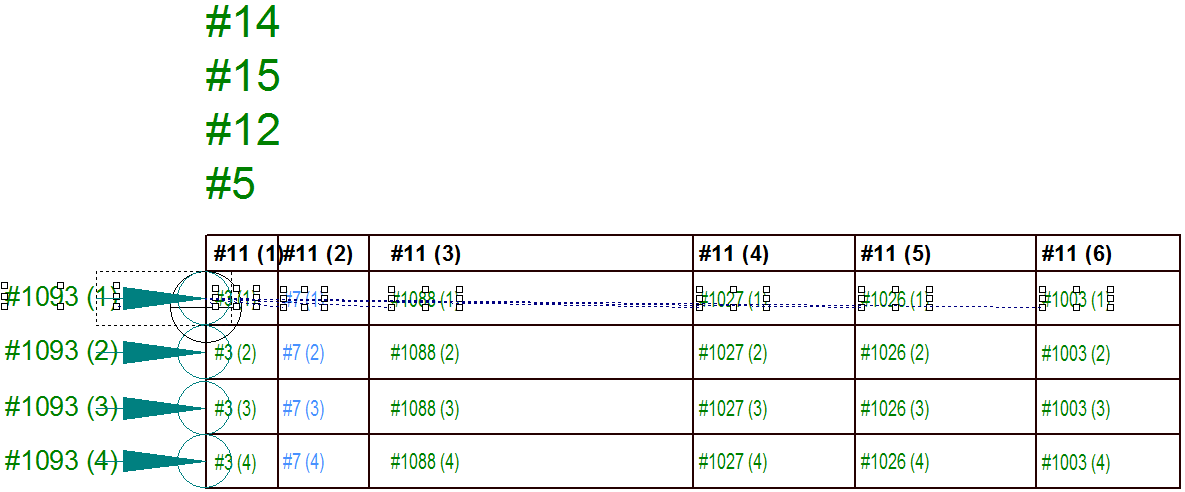
Add the desired text types to the symbol (like Pin number, Cross-section,
Note:
-
The corresponding relationships are displayed by using logic lines.
-
If necessary, the pin order can be changed in the main menu under Edit -> Order Definition -> Node.
Save the symbol for the device view in the database.
Example: View symbol as front view
Example: View symbol as table symbol
-
2nd Step: Place Device View Symbol on Component
-
open the component in the Database Editor, on which the device view(s) shall be placed
-
right-click on the created symbol for the device view in the Symbol Tree
-
select the context menu command Place as View
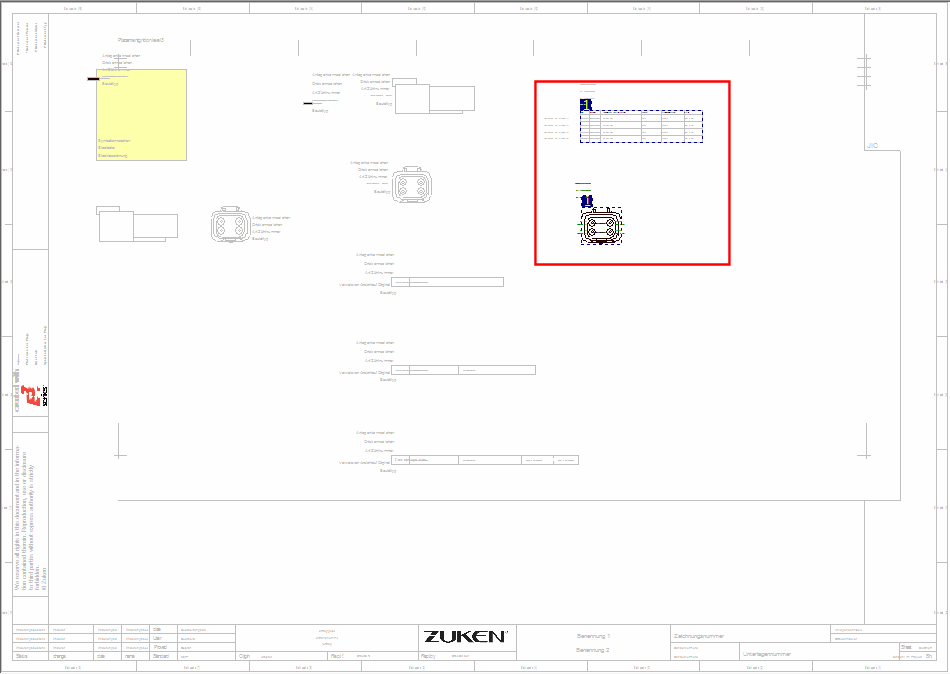
Next the symbol pins of the view must be assigned the desired component pins.
-
right-click on the device view and select the context menu command View Assignment...:
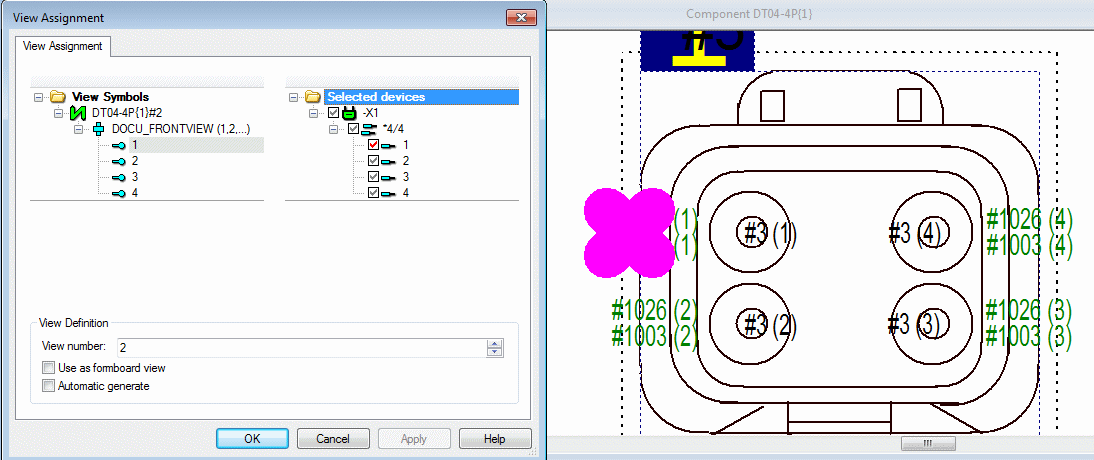
Save the component with the device view(s) in the database.
Use in Project
The desired device views can now be selected for the device in project mode: