Placing Wires/Conductors
Placing Conductors/Wires in Topology
When placing conductors/wires on a connection on a topology sheet, they are automatically routed and connected in the schematic. The same is also true in reverse when placing a /wire in the schematic.
To insert conductors/wires on a valid connection between installation spaces, a signal must be assigned to the functional port of the installation space.
-
Mark the desired connection in the drawing and select the Format ->Connection Properties command in the main menu, or directly right-click on the desired connection and select the Connection Properties command from the displayed context menu. Then
-
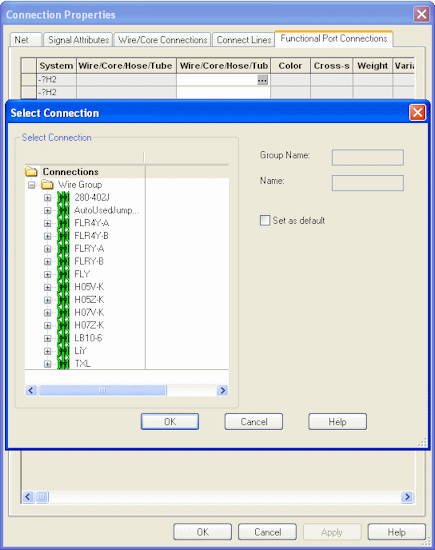
switch to the Functional Port Connections tab in the displayed dialog and left-click on the desired wire in the Wire/Conductor/Hose/Tube Type column.
-
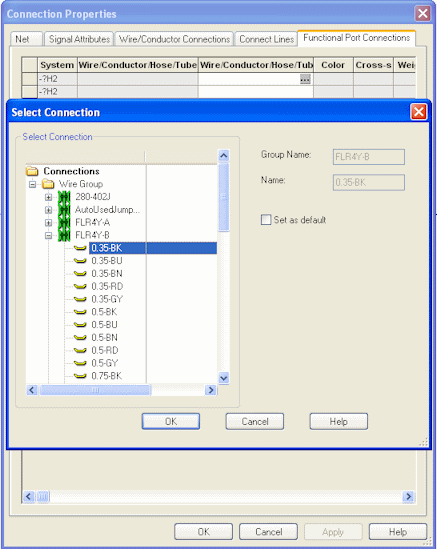
The Select Connection dialog opens in which the desired wire can be selected.
or
-
highlight the desired connection in the drawing,
-
right-click on the desired wire type in the Database window's Component tab,
-
select the Connect Wires command from the displayed context menu and
-
click on the connect line on the topology sheet to place the wire.
Rule regarding Three Possible Connect Points
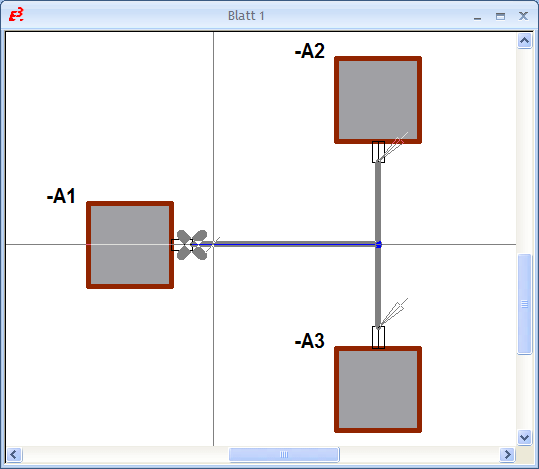
When routing a /wire between three possible connect points on a topology sheet, the location where the twin-lead terminal shall be is displayed by an X.
In the following example, the twin-lead terminal is at installation space A1:
Displaying Wires/Cables Assigned to Harnesses in E3.topology
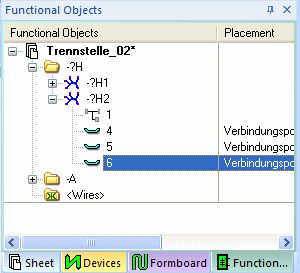
All assigned wires/cables are displayed below each cable harness in the Project Window Functional Objects tab: