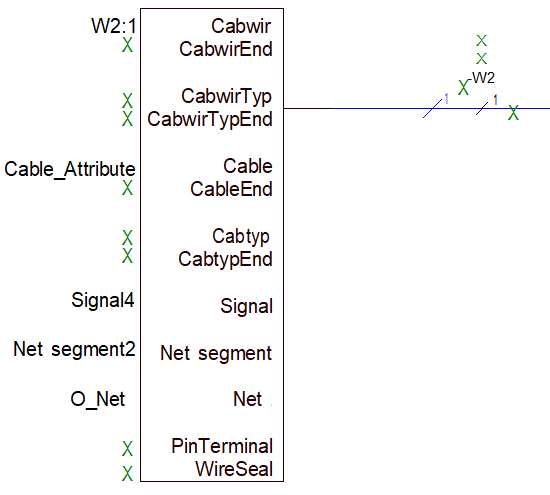
Display of Source Attribute on Placeholders
It is possible to create an attribute with several owners in the database editor and to assign it to a text type (placeholder) afterwards. The desired owner, which returns appropriate information in project, can be selected in the list source.
Preparations in Database Editor
Step 1: Create the attribute and assign the owner to be used
Create a new attribute (in the example BBB) in the Database Editor and select the owner to be used for this attribute:
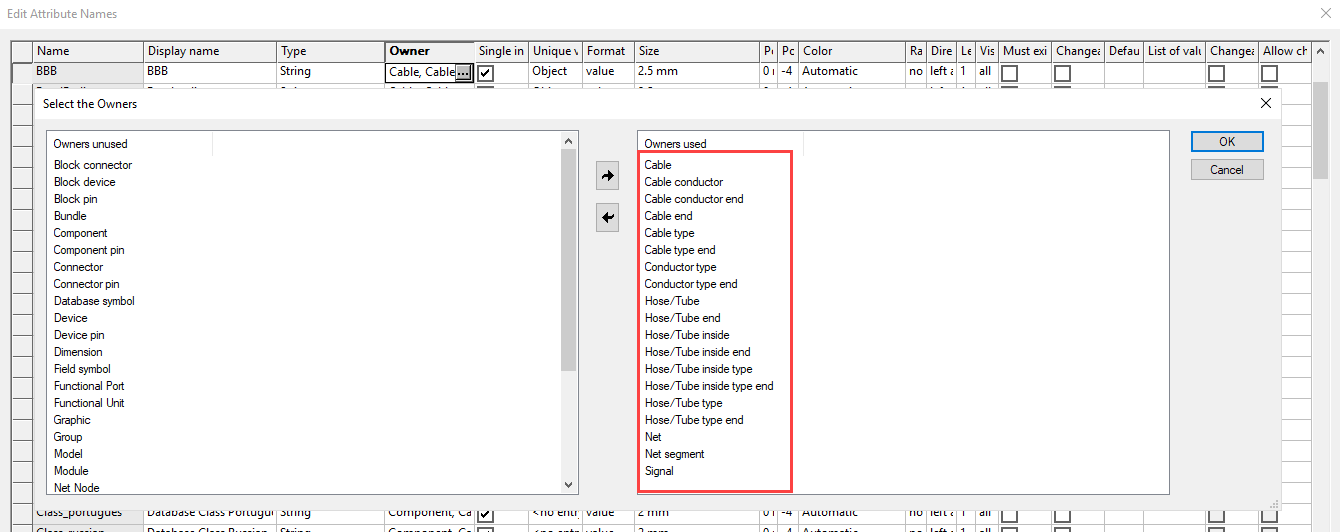
The following owners are available:
-
Cable
-
Cable end - with the connected end on the pin
-
Cable type
-
Cable type end - with the connected end on the pin
-
Cable conductor
-
Cable
-
-
-
Hose/Tube
-
Hose/Tube end - with the connected end on the pin
-
Hose/Tube type
-
Hose/Tube type end- with the connected end on the pin
-
Hose/Tube inside
-
Hose/Tube inside end - with the connected end on the pin
-
Hose/Tube inside type
-
Hose/Tube inside type end - with the connected end on the pin
-
Net
-
Net segment
-
Signal
-
Special type: Connector pin terminal
The information is displayed by an attribute assigned to the pin terminal component for this special type. The desired attribute must be selected from the column Assigned Attribute under Database ->Format -> Text types. This attribute must have the owner Component.
-
Special type: Wire seal
The information is displayed by an attribute assigned to the wire seal for this special type. The desired attribute must be selected from the column Assigned Attribute under Database ->Format -> Text types. This attribute must have the owner Component.
Step 2: Create the new text type and assign the attribute to this text type
Create a new text type (in the example AAA) in the database editor and assign the newly created attribute to this text type:

Step 3: Assign the text type to the symbol
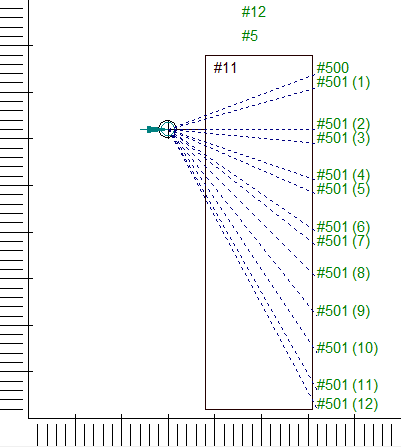
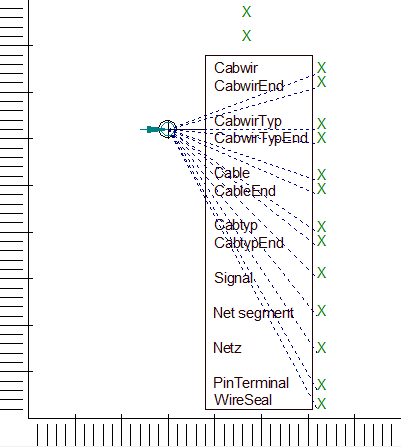
Add the desired text type to the symbol and group the text nodes on the corresponding pin:
Note
-
The attribute is evaluated only if the text is assigned to a pin.
Exceptions: Formboard symbols and attribute text template symbols
Step 4: Select the desired source for the text type
-
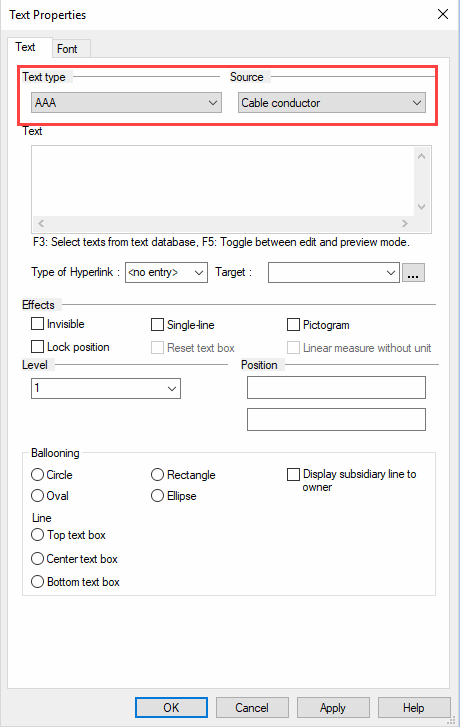
right-click on the text type and select the Text Properties... command
-
select the desired Owner for the text placeholder from the new drop-down list for the text type under Source in Text Properties - Text:
Note
Only the following symbol types are permitted:
-
Normal symbol
-
Connector symbol
-
Attribute text template symbol
-
Device symbol
-
Table symbol
-
Node template symbol
Note
The drop-down list is deactivated for all other symbol types that are not permitted.
Usage in Project Mode
The predefined attributes are now displayed on the symbol, provided that an entry exists in the project: