
Creating View Symbols for Pivoted Panel Side Views
The panel functionality is only available when a E3.panel license is present!
When a panel symbol is pivoted, either only the rectangle without graphic and texts is displayed or an appropriate graphic.
It's possible to define a pivoted/tilted view with corresponding graphic for each model. These side view symbols can be stored to the database for each single model.
These symbols can contain graphic objects and texts. During "normal" work these symbols aren't displayed anywhere (not even in the Database tree view). They are only displayed when editing a model in Database Editor mode.
To add a side view for a model,
-
activate the database editor, edit the desired model and afterwards select the Insert -> Model View command from the Main Menu bar, or
-
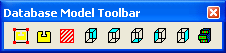
select the corresponding button of the Database Model Toolbar.
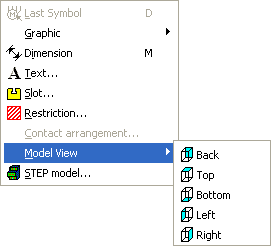
The Main menu contains the following submenus under Insert -> Model view:
-
Back
-
Top
-
Bottom
-
Left
-
Right
Note
The submenu entries refer to the model's standard mounting position.
If a symbol with the corresponding type is already defined, the corresponding sub-menu command is inactive.
This model view can be edited as a normal symbol. The model view is displayed with a corresponding icon in the tree view below the model. The info column displays the symbol type (Front, Back, Right, Left, Top, Bottom).

Double-click the corresponding view in the tree view or select the Jump to command from the displayed context menu, to edit the symbol:
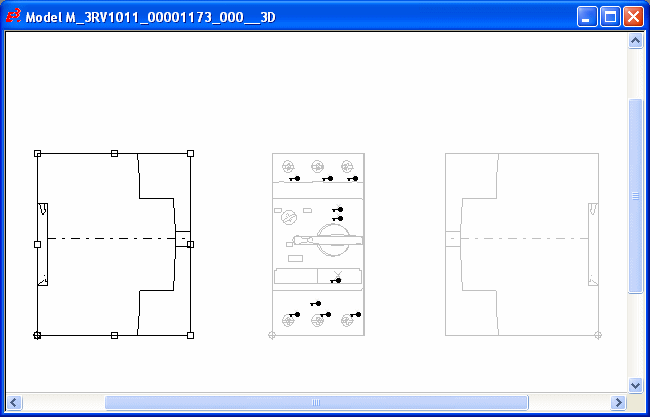
The symbol can be edited using the Graphic and Text Properties. All texts that are not assigned to a pin can be added.
"In the background" the component's size is displayed as a rectangle. The size is deviated from the model definition and thus it's not possible to change it for the model views.
Modifying a size is only possible on the "main sheet" (i.e. the main model) or in the Model Properties dialog. When changing the model size, corresponding views are automatically adjusted.
Inserting slots, pins and new views is only possible when the main model is active.
The model sheet can be switched to 3D mode using the corresponding button in the toolbar. It's also possible to work with 2 views opened at the same time (2D and 3D). Therefore create a new view for the current sheet by selecting the Window -> New View command from the Main Menu bar.
Defined view symbols are afterwards displayed in Project Mode on a panel sheet for pivoted/tilted models. In case no model view is defined for a side, the corresponding rectangle is displayed.