Placing and Rotating Connectors
This functionality is only available, when a E3.formboard license is present!
Placing Connectors
Formboard connectors can be placed on a formboard sheet in several ways:
From within the Database tree
Using the Place command or Drag&Drop.
From within the Project window
When connectors have already been loaded into the project, a new formboard view can be generated from these. They can be selected from the project window using the Place on formboard command from a connector symbol's context menu.
From within the project
In general, the Place on formboard command can be executed on all connector symbols in the project.
When no or several formboard symbols are defined for a connector in the database, the Place on formboard dialog box appears after placing the connector:
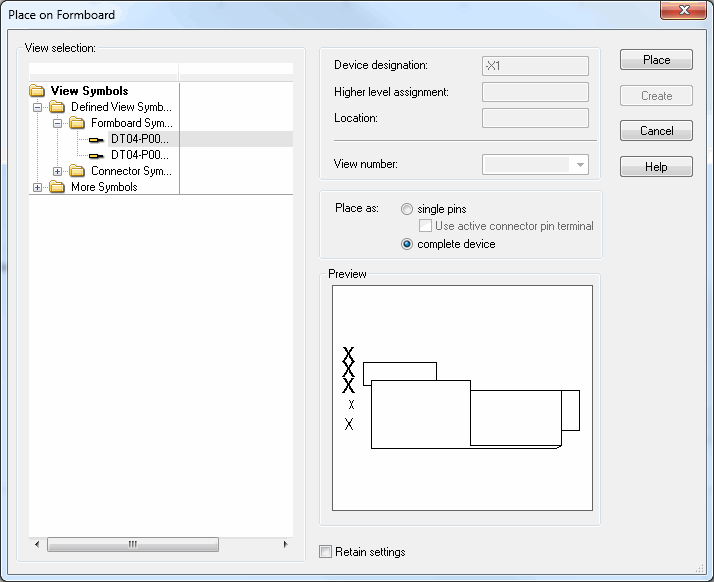
The appropriate formboard symbol can be selected from the database using the dialog's drop-down list.
When, for example, a cable with several connected formboard connectors is selected in the Project window, the following is valid for these formboard connectors when executing Place on formboard:
-
they are placed on after the other (Place button),
-
they are skipped using the Skip button (this means the next connector is selected) or
-
the complete place operation is aborted.
Skip can also be executed using the ESC key during placing.
Note
When deleting a formboard component (either a component or a connector) on a Formboard sheet, the component remains in the Formboard tree view as unplaced.
The following should be considered when deleting:
-
After executing the Delete command on the unplaced connector or the unplaced component, the formboard view is deleted.
-
After executing the Delete Forced command on the unplaced connector, all views of unplaced connectors or unplaced components are also deleted.
-
After executing the Purge unused objects command, all unplaced formboard views are deleted.
Using the device views in the Device tree view it's possible to see whether the formboard connector already exists but has not yet been placed (i.e. nothing is displayed in the Placement info column for the connector).
Autorotating Connectors
When connecting formboard connectors, they must be connected according to the connect line's angle. On formboard sheets it is possible to automatically adjust the connector's angle to the connect line's angle when connecting to the line.
To do so, the Autorotate option must be checked in Tools -> Settings -> Formboard.
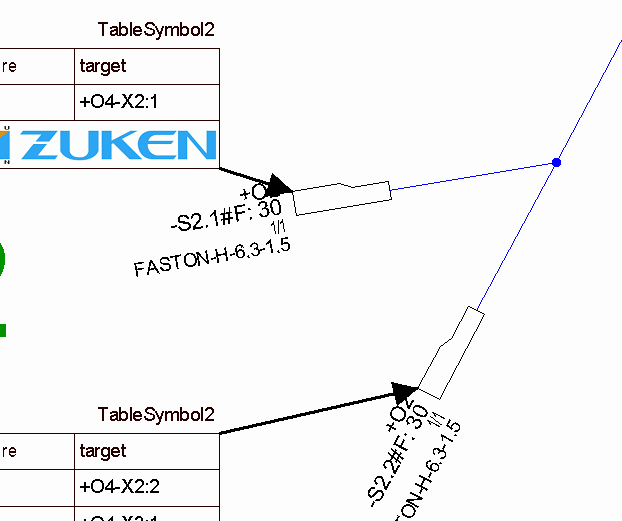
The following example shows an automatically rotated connector after connecting to an angular connect line: