Insert Variant Texts
To insert variant text into a drawing,
|
Insert Variant Texts
|
|
Owner
|
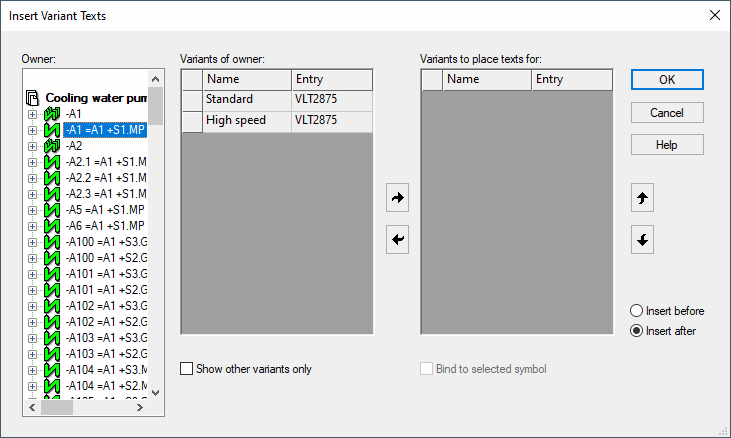
The Tree View on the left lists all the devices (incl. connectors, cables, terminals) for selection.
The variants of the selected device are displayed as text entries in the left column.
|
|
Variants of owner

|
The variant table on the left lists all variants that exist or only the variants different to the default (see 'Show other variants only'). The right arrow button allows you to copy the selected variant(s) to the list on the right.
It is possible to copy variants of different objects to the list.
|
|
Variants to place text for

|
Each entry in the table will be placed as text in the drawing when the OK button is pressed. Rectangular boxes, representing the selected text, are displayed at the location of the cursor, ready for placing in the drawing.
The left arrow button removes variants from the list on the right.
|
|


|
These buttons are used to move variant text up or down, in the list, so as to arrange the variants in the desired sequence for placing in the drawing.
|
|
Insert before/Insert after
|
These options allow you to define the place at which the text will be inserted into the table on the right.
|
|
Show other variants only
|
If this option is unchecked, all existing variants are listed.
If the option is checked, the list displays only the other variants that have a component code that are different to the default variant.
|
|
Bind to selected cell
|
The 'Bind to selected Cell' option is active, if only one symbol has been selected.
When checking this option, the text will be tied to the symbol.
|
|
Cancel
|
Click on the Cancel button to reset all entries made and close the dialog box.
|
Note on Variants of Attributes
Variants are handled on a hereditary principle, meaning that different values are possible within the variants for each of the attributes.
Hence, an attribute existing in a variant, must also exist in the default variant. Otherwise, it wouldn't be a different value, but an additional attribute.
Therefore, when an attribute is added to a variant, the same attribute (without any value) is automatically created in the default variant. This is done automatically without any user action.