
Export Image as TIF / GIF / JPG / BMP / PNG
Exporting a drawing, parts of a drawing or a whole range of sheets as image offers the option to define export settings for exporting in TIF/GIF/JPG/BMP/PNG format.
To display the Export Image as TIF / GIF / JPG / BMP / PNG... dialog box,
-
select the File -> Export -> As Image... command from the Main Menu bar,
-
select the desired export format in the Export as Image... dialog box's Save as type field and
-
click on the Options button.
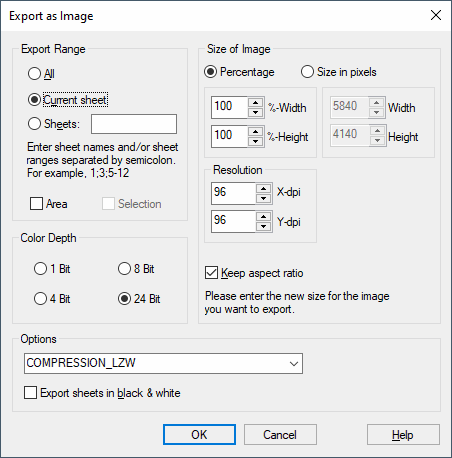
The following dialog box will be displayed:
|
Export Image as TIF / GIF / JPG / BMP / PNG... |
|
|---|---|
Export Range |
|
|
All |
If this option is activated, all sheets are exported. |
|
Current sheet |
If this option is activated, the current sheet is exported. |
|
Sheets |
Select this option to export one or several sheets. In the associated text box enter the number of the sheet(s) to be exported separated by semicolons.
If the command Export as Image... is directly activated on a folder in the Sheet tree view of the Project window using the context menu, the system automatically enters the respective sheets contained in this folder. |
|
Area |
If the checkbox is activated, a selected area will be exported as image. The OK button will then change to Select Area. |
|
Selection |
If a special area has been selected in the drawing before activating the export command, this option is automatically active, i.e. the selected area will be exported as image.
In this case the section Size of Image is active and several settings can be defined. |
Color Depth |
|
|
Color Depth |
Defines the color depth of the image to be exported.
See also: Notes on color definitions for image formats. |
Size of Image |
|
|
Size of Image |
Concerning the image size, the user can decide whether to output in percent or absolutely (the options Percentage and Size in pixels are only active, if Selection has been activated):
The values for Width and Height are each displayed in the fields below. |
|
Resolution |
Resolution in X and Y direction: dpi (dots per inch), similar to the printer drivers: min. 1 dpi; max. 1000 dpi.
GIF does not support changes of the resolution; Standard value is 96 dpi. |
|
Keep aspect ratio |
If this option is activated, the X and Y coordinates of the image's size interdepend.
If this option is inactive, the X and Y coordinates of the image's size can be defined independent of each other. |
Options |
|
|
Options |
The desired compression type can be selected from a drop-down list in case the file type *.tif, *.tiff or *.gif has been selected. |
|
Compression |
Dependent on the set image format the compression mode can be selected. In the presettings no compression is set, in case it is no format being always compressed.
|
|
Export sheet in black & white |
Exports all text and lines in black rather than color or shades of gray.
In the case of solid color fills, the output depends on how dark the fill is. |
|
Select Area |
Clicking on this button opens the Import Export - Area dialog box in which special export settings referring to the selected area can be defined. |